TL;DR
- Choose SurveyMonkey to survey people outside your customer base, use a built-in panel, or run statistical research, as long as you’re fine hosting your data in the US. Move it to the EU data center (Enterprise only), and you lose 14 features, including the Mobile SDK, the Audience panel, and Analyze with AI.
- Choose Survicate to collect, analyze, and act on feedback from your own customers in one place, without buying extra products to cover every channel. Run native in-app and website surveys your team can target and change without going back to developers, know who answered, and analyze surveys together with reviews, tickets, and call transcripts.
“Seems relatively simple to make a survey.”
That’s how a G2 reviewer in law enforcement opened their review of SurveyMonkey.
And in my opinion ‘relatively simple’ is a very good description of SurveyMonkey and its main use cases.
Relatively, because the in-app homepage got a solid redesign, but the rest of the UI hasn’t caught up. Go deeper into the survey settings, and it still feels tricky and very 2010-ish.
Simple, because despite all its acquisitions, most people still think of it as a tool for creating and sending link surveys.
For reaching an outside audience or running market research, that works well. Especially with its built-in respondent panel.
But what if you want to survey your existing customers, especially inside your product or on your website, in the moment…and know who answered? Then you’re looking beyond SurveyMonkey.
And that’s where Survicate comes in.
Let’s compare the two bit by bit and figure out which one to choose when.
Why this comparison?
First, let’s answer the big Why on even creating this article.
I’ve got two reasons.
First, Survicate and SurveyMonkey keep landing on the same shortlists, from G2 head-to-heads to countless software comparison lists.
Second, many of our customers switched from SurveyMonkey or are thinking about it.
That gave me both the intel and a good reason to write a proper comparison piece.
How I did this review
I’m on the Survicate team, so this article is obviously from the Survicate’s perspective, but that doesn’t mean I haven’t tested SurveyMonkey, or am not pointing out where it wins (it does, in a few places).
So to keep it fair, I:
- tested both tools hands-on, building surveys from scratch, from templates, and with AI;
- checked official product pages and help centers;
- analyzed the 50 newest G2 reviews for each tool, plus every HubSpot Marketplace review for both HubSpot apps with Research Hub;
- used anonymized intel from sales and research calls with teams moving off SurveyMonkey.
Beyond survey creation, I looked at what happens around the survey: where you can ask, whether you know who answered, how the feedback gets analyzed, and what you can do with all of it.
Survicate vs SurveyMonkey: overall rating and verdicts
| Survicate | SurveyMonkey | |
|---|---|---|
| G2 rating | ⭐ 4.6/5 | ⭐ 4.4/5 |
| In-product and website surveys | ✅ | ✅ Basic embed or popup |
| Mobile app surveys | ✅ Every plan | ✅ Paid plans, require developers work, not available on an EU data center |
| Surveys inside Intercom and Braze | ✅ | ❌ |
| Know who answered, automatically | ✅ | ❌ Only with its own email invitations |
| AI analysis across surveys, reviews, and tickets | ✅ | ❌ Single surveys only |
| AI analysis in any language | ✅ | ❌ English only, off limits for EU data hosting |
| MCP for Claude and ChatGPT | ✅ Incl. Research Hub | ✅ Surveys only |
| Crosstabs, significance testing, SPSS export | ❌ | ✅ Paid plans |
| Built-in respondent panel | ❌ | ✅ Sold separately |
| Templates | 500+, all customer feedback | 400+, every use case |
| HubSpot integration | ✅ From Growth | ✅ But rated 2.7/5 on HubSpot Marketplace |
| Salesforce CRM (Sales Cloud) integration | ✅ From Pro | ✅ Enterprise only |
| SOC 2 Type II | ❌ Audit underway | ✅ |
| EU data hosting on every plan | ✅ | ❌ Enterprise only, and 14 features turn off there, incl. Mobile SDK, Audience panel, and Analyze with AI |
| Seats included | ✅ | ❌ Priced per user |
| Free trial | ✅ 10 days, no credit card | ❌ |
Beyond the table: how Survicate and SurveyMonkey really compare
And if you care about all the juicy details…get in, we’re going for a joyride.
But first, a quick look at where each tool comes from and what changed this year. It explains a lot of what you’ll see later.
Pinky promise. 👉👈
Survicate vs SurveyMonkey: in a nutshell
SurveyMonkey has been on the market since 1999, serving use cases from market research and customer experience to HR and education. And despite its many acquisitions, it’s still a survey tool at its core. Everything else (the Audience panel, LaunchPad, GetFeedback, Apply, and Wufoo) is a separate product, priced on its own.
Survicate is a customer feedback platform, on the market since 2013. It helps teams from UX research to Customer Experience collect, analyze, and act on feedback. You collect direct feedback through email, website, in-product, and mobile surveys, analyze it together with connected indirect feedback via Research Hub, and act on it all through 45+ native integrations, covering the whole loop.
What's new in SurveyMonkey in 2026
The biggest visible change in SurveyMonkey now is its redesigned in-app homepage.
It’s much simpler now: three ways to start a survey (from an idea, a template, or scratch) and a prompt box front and center.
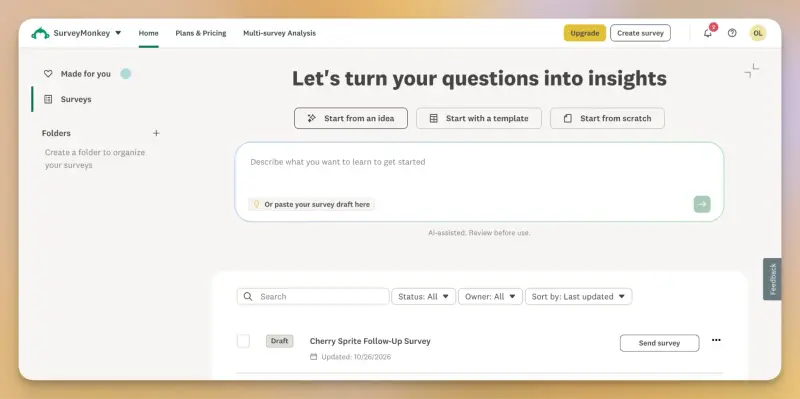
Once you click into survey creation, though, it’s the same SurveyMonkey as before. Same builder, same settings, and same feel.
SurveyMonkey also added an AI analysis suite and an MCP connector for AI assistants like Claude and ChatGPT. More on both later.
Why SurveyMonkey feels like several tools
If SurveyMonkey feels a bit confusing sometimes, it may be because much of its range came from acquisitions:
- 2011: Wufoo (forms), for a reported $35 million;
- 2014: FluidReview, now SurveyMonkey Apply;
- 2015: TechValidate (customer proof);
- 2019: Usabilla (website and app surveys) for $80 million, and GetFeedback for around $68 million.
These products never fully became one. Website and in-app feedback still sits in GetFeedback, separate from the core app.
And some of the acquired tools are shutting down.
GetFeedback Direct, the Salesforce-connected survey product, closes on December 31, 2026, with customers pointed to SurveyMonkey Enterprise.
What's new in Survicate in 2026
Survicate took a different route: one product, built in-house.
This year, our Product team shipped 25 new features and over 100 smaller improvements, most of them based on customer requests.
The highlights:
- Question groups: bundle related questions and route respondents with one logic rule;
- Respondent language picker: respondents choose their language, and answers come back translated;
- Server-side targeting: surveys follow the user across website, product, and mobile app, so nobody sees the same survey twice;
- Segment and RudderStack integrations: target surveys on the attributes and events already in your data stack;
- Research Hub upgrades: folders, charts in reports, transcript view, and Google Meet as a feedback source.
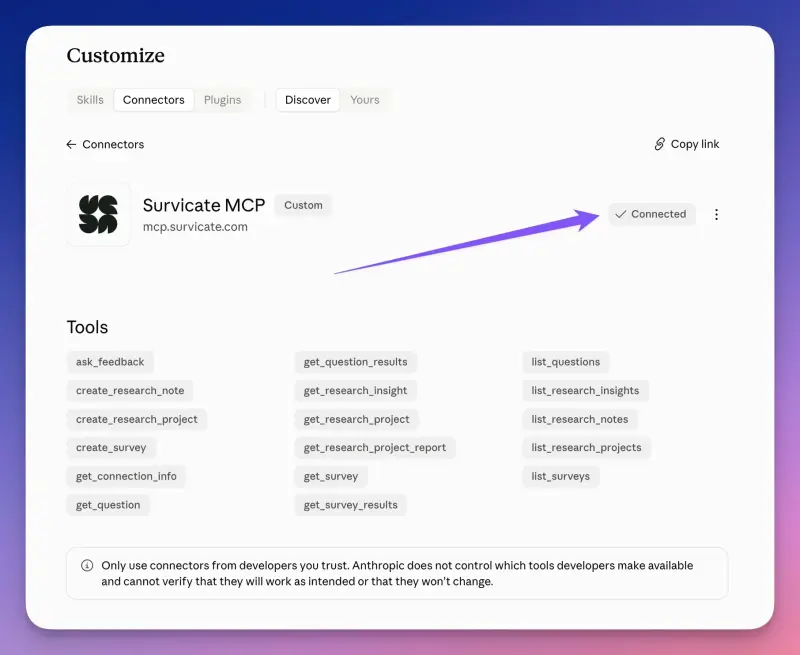
The biggest launch was Survicate MCP, which connects your feedback to Claude, ChatGPT, and other AI assistants. It follows your permissions too: if you can’t see a survey in Survicate, your assistant can’t either. More on it below.
💡 Live in beta: email surveys sent straight from Survicate (available for testing).
So is all of this reflected in what users actually say?
Real user feedback: what do users say on G2?
What’s the best way to keep a comparison article objective? In my opinion, it’s real user feedback. And not cherry-picked.
So I analyzed the 50 most recent G2 reviews for both tools, filtered to Users and Administrators only, to stay as close to everyday users as possible.
PS: SurveyMonkey’s sample has a catch. In the “Most recent” view, 41 of 50 reviews landed on September 22 and 23, likely from G2’s seller invites. Switching to “G2 sort” shrank the spike (22 of 50), but it’s still there, so take SurveyMonkey’s numbers with a grain of salt.
Don’t worry, G2 isn’t the only source in this comparison. 😉
Overall rating: close on both sides
Back to the analysis, though.
On G2, Survicate holds a 4.6/5 score across 215 reviews, and SurveyMonkey 4.4/5 across 24,000+.
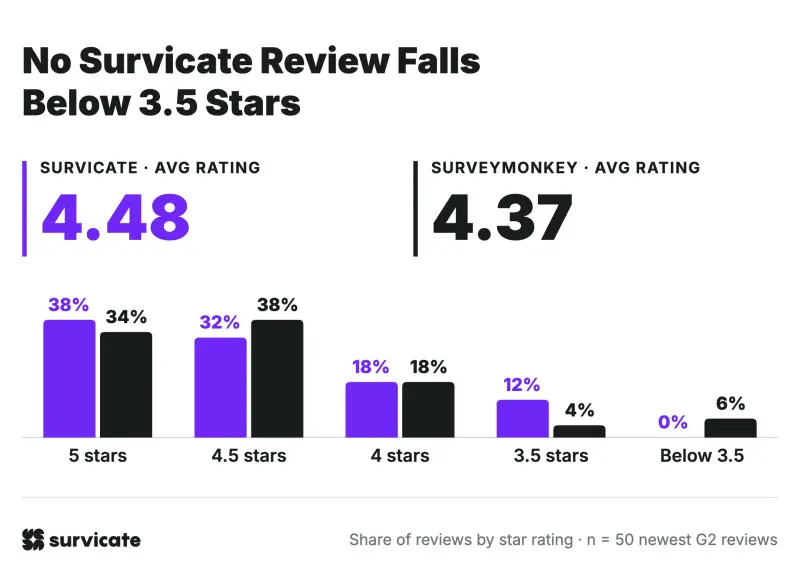
In my sample, the averages sit close too: 4.48 (Survicate) vs 4.37 (SurveyMonkey).
Interestingly, no Survicate review in the sample falls below 3.5 stars, while SurveyMonkey goes even to 0.
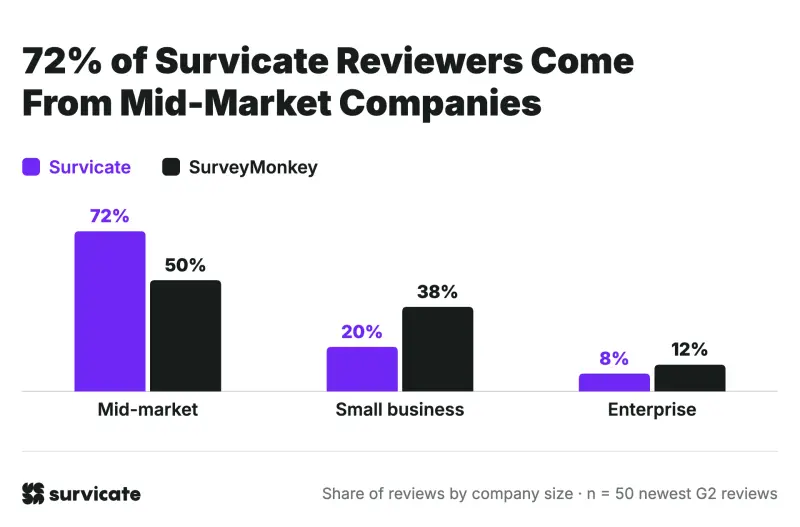
The reviewers differ, too: 72% of Survicate’s come from mid-market companies, while SurveyMonkey’s are split between mid-market (50%) and small businesses (38%).
Ease of use: a shared strength
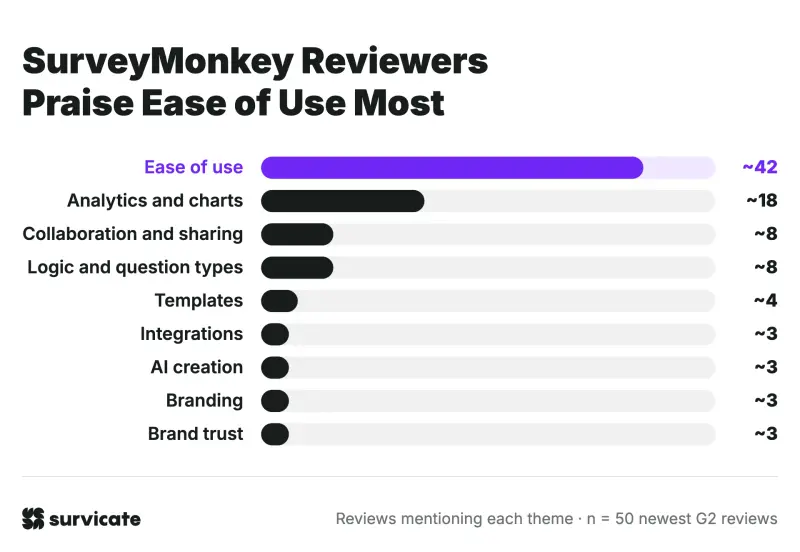
Ease of use tops both lists: about 42 SurveyMonkey reviews and 40 Survicate reviews mention it.
After that, the lists split. SurveyMonkey users value ready-made charts and analytics (~18) and easy sharing and collaboration (~8):
“Most of the time, I do not even have to generate new reports, I just use exactly what’s given to me because it looks that good.” (G2)
And on Survicate’s side:
“For us, it's been an intuitive and simple tool to use. There wasn't too much of an onboarding needed in order for us to start using it.” (Alicia S., Product designer, G2)
Support: Survicate’s clearest win
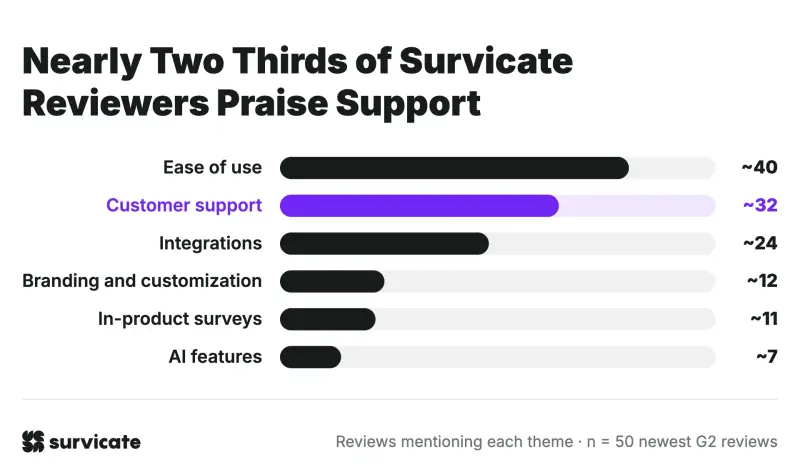
About 32 Survicate reviews praise support. SurveyMonkey reviews rarely mention it, and 2 of the 3 that do are complaints:
“I logged a query a month ago and followed up twice and have yet to receive any assistance.” (G2)
Compare that with Survicate:
“Their customer support is stellar, without a doubt one of the best teams I have ever interacted with.” (Verified User in Financial Services, G2)
Integrations and in-product surveys: what Survicate users value
Survicate users praise integrations in about 24 reviews (vs ~3 for SurveyMonkey) and in-product surveys in about 11:
“Seamles integration with Braze and response rate that we never managed to reach leading people outside of our app with SurveyMonkey.” (Ivet N., Product Marketing Manager B2C Monetization, G2)
Pricing: SurveyMonkey’s biggest complaint
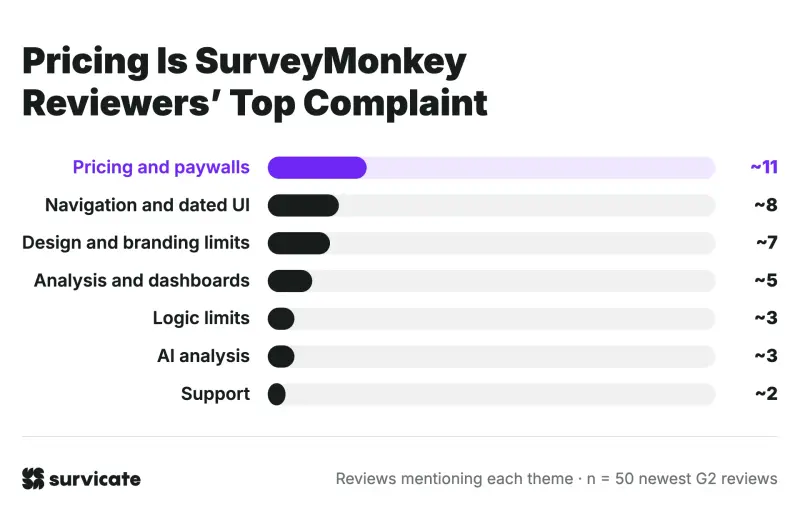
Pricing and paywalls lead SurveyMonkey’s complaints (~11), ahead of Survicate’s (~8). Most come from occasional users and features locked to higher tiers:
“The cheapest option was to pay $99 for one month, just to collect fewer than fifty replies to a single one-question survey.” (G2)
“The cost was excessive especially as I only wanted to conduct one survey for now and I had to pay a years subscription” (Verified User in Higher Education, G2)
Reporting: a weak spot for both
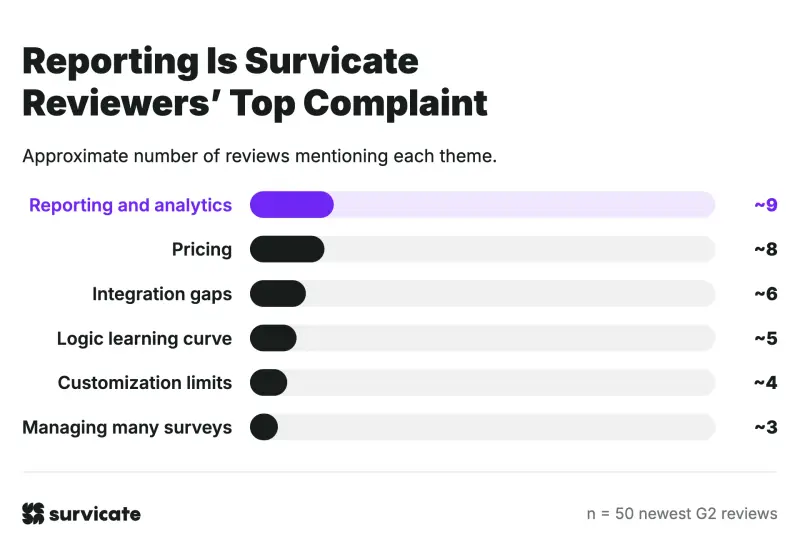
To be fair, reporting is a top complaint for each tool.
SurveyMonkey users call chart editing “a ton of manual work” (G2), while Survicate users want cross-survey reports and deeper dashboards (~9):
“While analytics are clear for individual surveys, there is no way to aggregate results across all surveys to see what the average conversion rate is for example.” (Verified User in Food & Beverages, G2)
In short: SurveyMonkey reviewers love how easy it is to run a survey. Survicate reviewers love what happens around it: the support, the integrations, and surveys that live inside the product.
Head-to-head feature comparison
Now, the feature battle.
In-app homepage and getting started
Signing up for either tool takes an email address and a few clicks. The difference shows up once you land on the homepage.
SurveyMonkey: simpler capabilities
SurveyMonkey’s new in-app homepage is a real improvement. It used to list your past surveys in blocks, with a small “Create survey” button in the corner.
Now it’s much cleaner and built around one job: starting a survey, from an AI prompt, a template, or scratch.
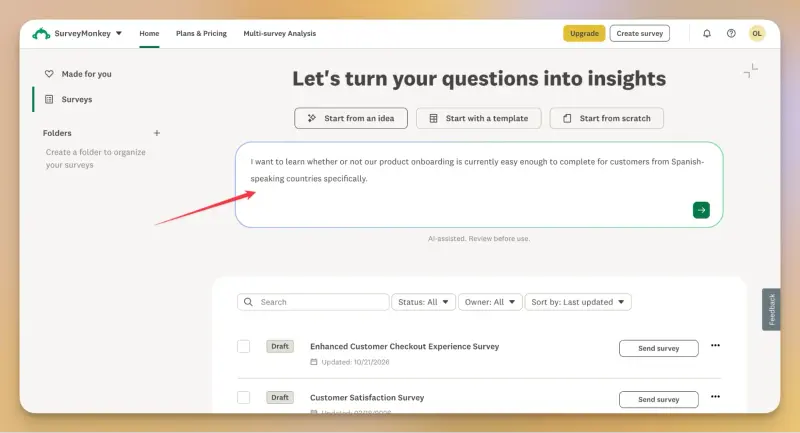
A hard-to-miss headline asks you to turn your questions into insights, followed by the three options mentioned above.
Creating and editing the survey with AI
Go the AI route, and you get a prompt box where you describe what you want to learn or paste questions you already have.
SurveyMonkey also suggests a prompt, like:
“I want to measure overall customer loyalty by asking if they would recommend our brand to their friends and family.”

After a mysterious loading screen, you get a drafted survey.
Like so.
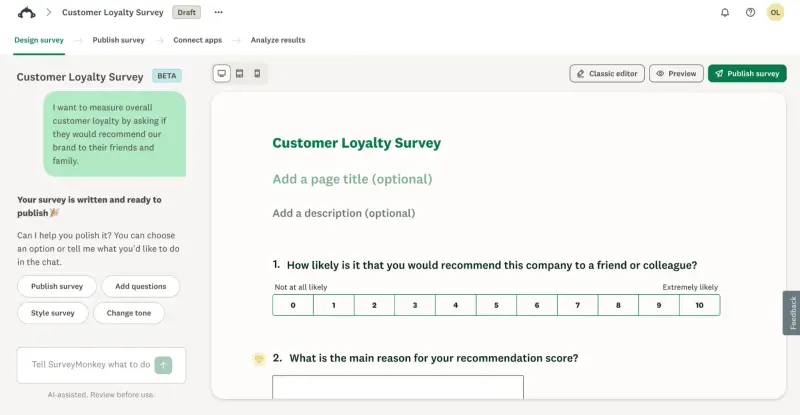
Once the survey is drafted, you get to review it and then either keep on editing with SurveyMonkey’s AI using follow-up prompts or switch back to the “Classic editor” and edit the survey yourself.
What’s a bit confusing is the fact that you can’t edit the AI-drafted survey yourself while in the “Chat to edit” mode. You can only use prompts, delete existing questions, mark questions as required, or add “Other” as an answer option.
I’m not the only one who noticed:
“I did play a little bit with the AI features and the analyze tool, and I feel like it felt a little disjointed when I was working with those features.” (Jamie G., Product Marketing Manager, G2)
And for the survey itself. It’s not bad, but it’s definitely generic at first. So let’s see if a prompt to add in more specific details into the questions helps.
And it did!
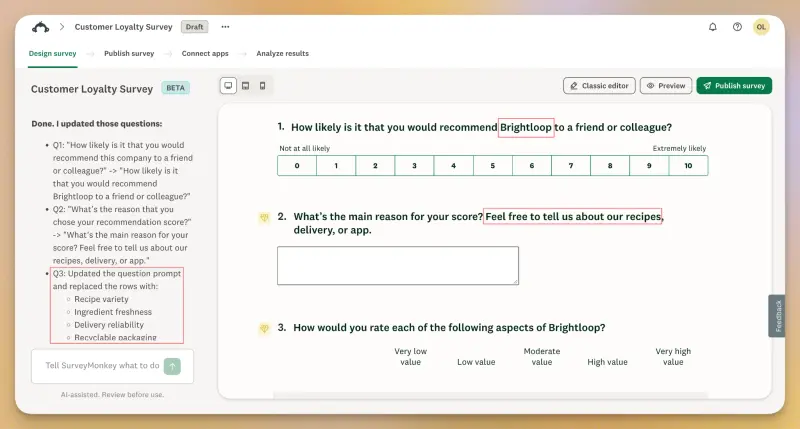
One simple prompt made the survey much more specific, adding actual product names and specific features.
“Chat to edit” is clearly the more modern part of the builder.
Switch to the Classic editor, and the UI gets noticeably older (more on that below).
You also can’t test the survey there, since it’s not interactive.
Testing the survey in preview
To actually click through your survey, you have to open the preview in a separate screen. Over there, every question is interactive, so you can pick an NPS score, type an open-ended answer, fill in the matrix, and drag the slider, just like a respondent would.
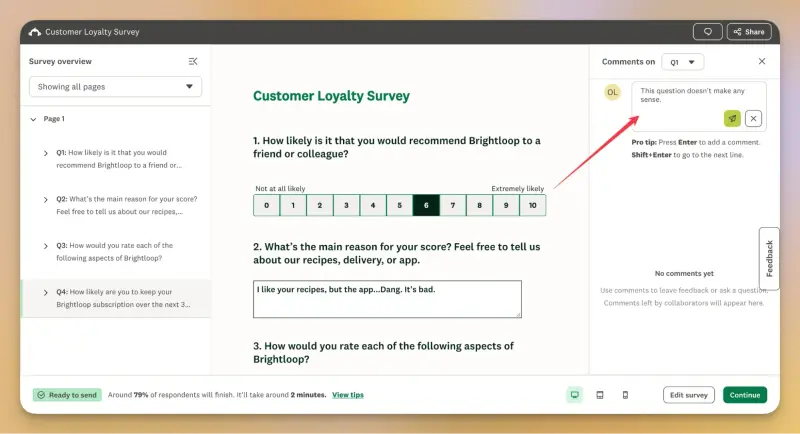
A few things I liked:
- Device switcher: check how the survey looks on desktop, tablet, and phone;
- Completion estimate: SurveyMonkey predicts how many respondents will finish and how long it’ll take. For my 4-question survey, that was around 79% and 2 minutes;
- Collaborator comments: the “Survey overview” sidebar lists every question, with its type and answer options, so your teammates can leave comments on specific questions before you publish.
That last one took me a moment to figure out, though. Nothing in the sidebar says it’s for comments until you hover your mouse over it, so at first it just looks like the same 4 questions repeated next to the survey.
When it comes to the completion estimate, it comes from SurveyMonkey Genius, based on survey length and question types across SurveyMonkey’s data.
And the completion rate checks out. In our own benchmarks, 4-question surveys reach a median completion rate of 79%, the exact same as SurveyMonkey’s estimate. Completion time is another story, though: the same surveys take a median of 47 seconds, well under SurveyMonkey’s 2 minutes.
Still, Genius should be treated as a handy sanity check, but it knows nothing about your audience or where the survey will show up.
That’s where industry or audience-specific benchmarks are much more useful, and ours break completion rates and times down by industry, survey format, and B2B vs B2C.
When you’re happy with it, you can either go back to editing or continue straight to sending. But first…Let’s check out the template route.
Going with templates
The template route starts with a search box. I typed in “CSAT” and got nothing, because SurveyMonkey calls it “Customer satisfaction”.
But browse them all, and you’ll find over 400 templates, from Human Resources and Education to Healthcare and Market Research.
Forms make up almost a third, so not everything is a survey.
And some are, let’s say…unexpected.
Need a Lash Consent Form? A Cake Order Form? A survey about self-driving cars, or one asking what celebrities did before they were famous?
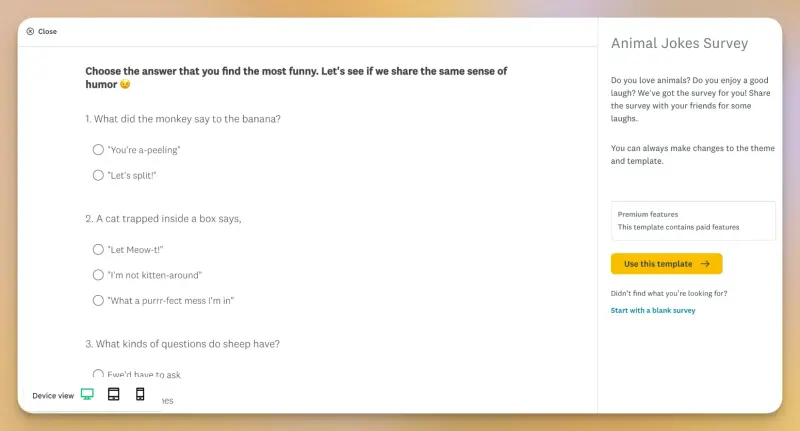
SurveyMonkey has you covered. There’s even an Animal Jokes Survey, which (fun fact) sits behind a paywall, along with about two thirds of the whole template library. 🐒
Another fun fact (yes, I’ve had four coffees already): this innocent animal word-play survey comes with a scary disclaimer:
“NOTE: THIS TEMPLATE IS NOT BUILT FOR OR INTENDED FOR DISTRIBUTION TO MINORS UNDER 16 (OR A HIGHER AGE DEPENDING ON YOUR LOCATION). Visit the Acceptable Uses Policy for more information.“
The UI when editing/starting from scratch
The final route is simply starting the survey creation completely from scratch.
This one immediately opens the survey builder. And it’s the SurveyMonkey you remember.
Because the redesign seems to have stopped at the homepage and the edit with chat option, but the builder where you get your hands dirty, looks and works the same as before.
G2 reviewers from September 2026 still describe “really old UX” in the setup (G2) and features that feel “clumped together” (G2).
“At times, the interface feels a bit outdated, but overall it’s still easy to use.” (Verified User in Legal Services, G2)
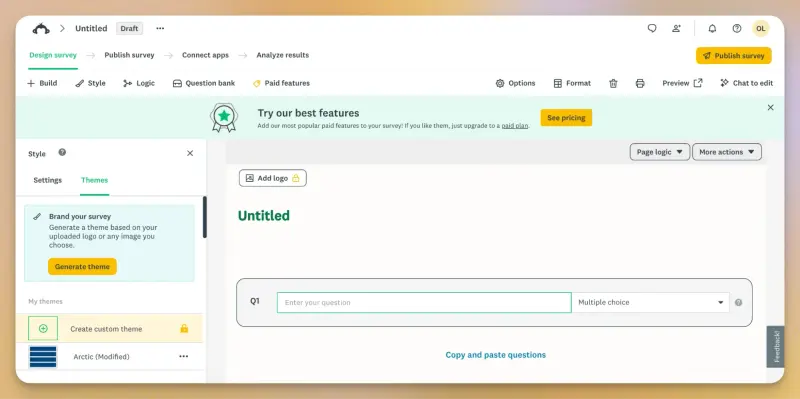
My biggest complaint for SurveyMonkey’s survey builder is that you can’t get too far without scrolling through.
Add one question, open its settings, and you can’t see anything else.
Take a look at the design settings on the left-hand panel and all you see without scrolling is the option to add a logo and a footer.
It’s super packed, but also feels empty at the same time.
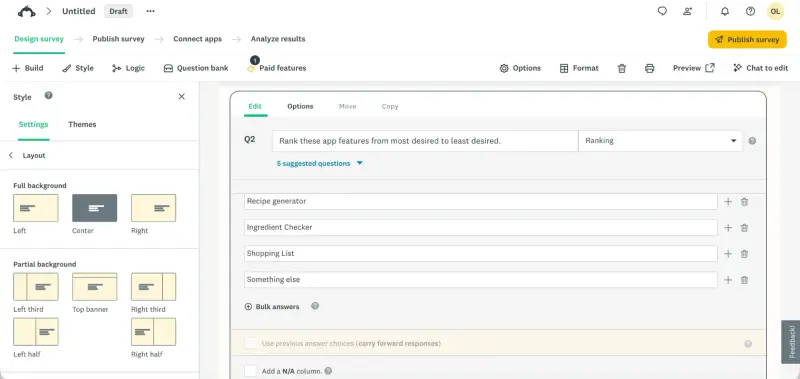
For me it feels very much like editing a page on WordPress in 2010.
Design options cover the basics: theme, colors, fonts, logo, footer, background, and layout.
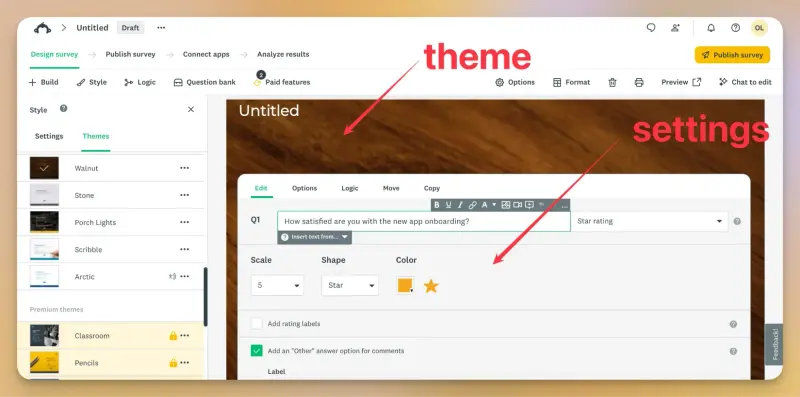
But SurveyMonkey’s own green buttons and grey settings stay in the way, so it’s hard to see your changes clearly until you open the preview.
Where can you show your surveys?
SurveyMonkey distributes surveys through collectors:
- a shareable link and social posts;
- a website embed or popup, with basic targeting;
- email invitations (paid);
- a mobile SDK (paid);
- kiosk mode and manual data entry (paid);
- SMS (Enterprise);
- the Audience panel, if you need respondents you don't have.
That last one is where SurveyMonkey’s main use case comes in. If you need answers from people outside your customer base, a built-in panel is a big plus.
Survicate: a customer feedback control center
Survicate’s in-app homepage greets you by name (“Good evening, Ola!”) and works more like a control center than just a survey launcher. Instead of focusing on one task only, it offers you…more.
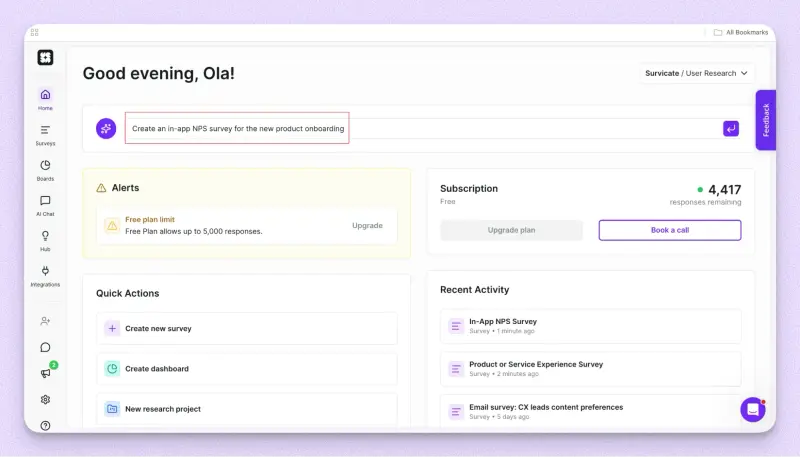
On a single screen, you get:
- AI prompt bar: ask about the feedback you already have or describe a survey you want to create;
- Quick actions: create a new survey, build a dashboard, or start a new research project;
- Recent activity: your latest surveys and projects, with a timestamp, so you can jump right back into what you were working on last week;
- Alerts and subscription: plan limits and the number of responses you have left, plus a button to book a call with the Survicate team;
- Workspace switcher: move between workspaces (in my case, a User Research one) without logging out;
- Feedback box: leave any suggestions or thoughts you have about the platform in a “How can we make Survicate better for you?” box;
- Status updates: have easy access to important information about Survicate’s operating system and any potential issues affecting it;
- Resources: find essential resources, such as our help center, a quick link to contact the Survicate team, or our developer docs linked up.
The sidebar takes you straight to Surveys, Boards, AI Chat, Research Hub, and Integrations.
So if you log in to check results, build a report, or connect a new tool, you don’t have to go through the survey creation flow first.
Creating the survey with AI
Now, just like in SurveyMonkey, you can start a survey with a prompt directly from the homepage.
The difference is that you don’t need to pick the AI route first, since the prompt bar sits right there.
I typed in:
“Create an in-app NPS survey for the new product onboarding”
Hit enter, and a “Create new survey” window popped up with my prompt already filled in. In the next step, you can add more details before generating anything.
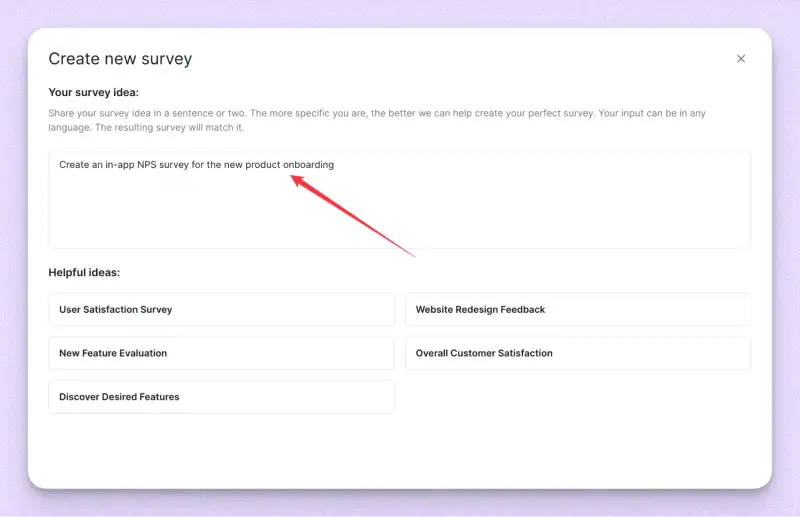
Survicate nudges you to be specific, since more context means a better survey.
And a nice touch for teams in more than one market: write your prompt in any language, and the survey comes back in that language.
Not sure what to ask for?
A few “Helpful ideas” sit below the prompt box, like User Satisfaction Survey, New Feature Evaluation, or Discover Desired Features.
The loading screen…Gone so fast I couldn’t screenshot it. 😅
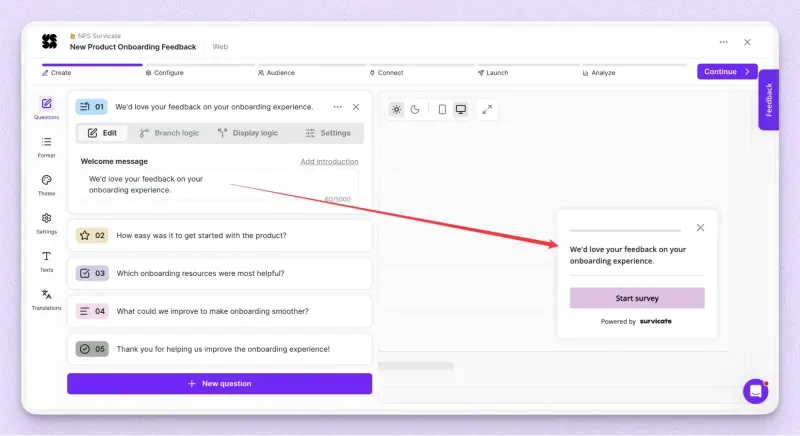
As a result of my prompt, I got a great starting point for the onboarding NPS survey, with the right survey type already selected (web survey in this case).
One G2 reviewer had almost the exact same experience:
“Just by writing "I want to know how users feel after onboarding", the AI put together a survey ready to launch, with questions that went straight to the point.” (Pratik P., Project Manager, G2)
The survey is of course a bit generic (because so was the prompt in both cases).
But in this case, editing it further may be easier because you won’t have to switch between three views: AI edits, survey editing, and preview (as in SurveyMonkey).
You just make the edits and see the results right on the live preview.
Going with templates
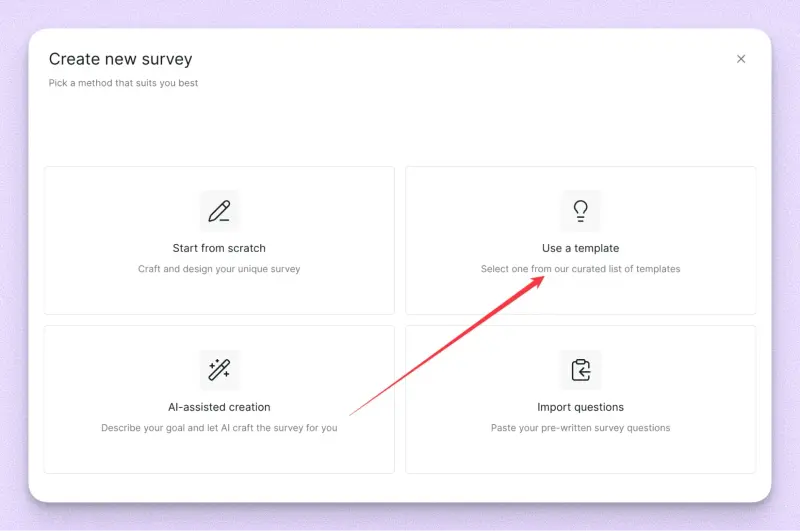
If you go the template route in Survicate, you’ll get a library of 500+ templates, all built around customer and product feedback.
The list adapts to the survey type you picked, so if you’re creating a mobile app survey, you’ll see templates that make sense for mobile first.
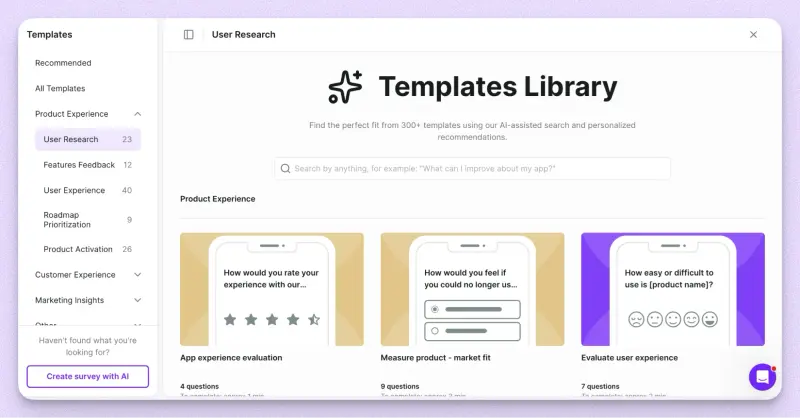
The templates are split into four categories:
- Product Experience: product-market fit, onboarding experience, feature release evaluation, sign-up experience, mobile app evaluation, and SUPR-Q;
- Customer Experience: NPS, CSAT, extended NPS, churn and exit reasons, helpdesk evaluation, and a Voice of the Customer survey;
- Marketing Insights: Van Westendorp pricing questions, willingness to pay, user personas, competition research, messaging clarity, and customer testimonials;
- Other: for example, recruiting participants for your research panel.
Each template card also shows how many questions it has and roughly how long it takes to complete, so you know what you’re getting before you even open it.
Searching works a bit differently too.
Instead of typing in exact template names, you can search in plain language, like “What can I improve about my app?”, and the AI-assisted search finds templates that fit.
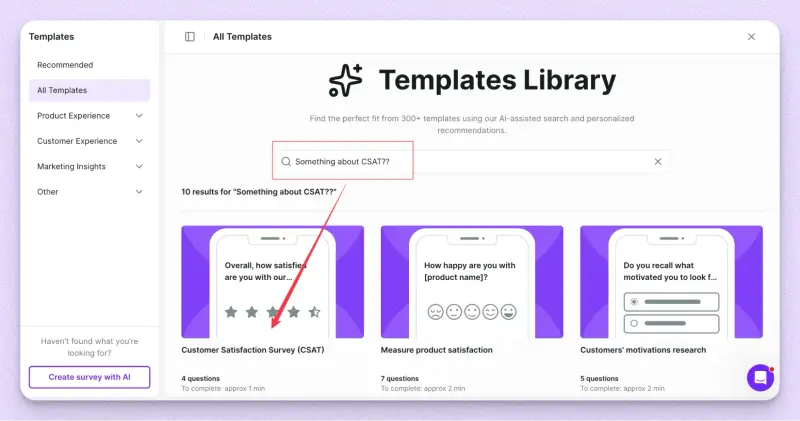
And if nothing does…there’s a “Create survey with AI” shortcut right there.
So compared to SurveyMonkey, the library is a bit smaller, but every template is about customer feedback.
No Lash Consent Forms, no Animal Jokes. 😉
Starting from scratch and distribution
When starting with templates or starting from scratch, Survicate asks one extra question that SurveyMonkey leaves for the very end of survey building: where will this survey show up?
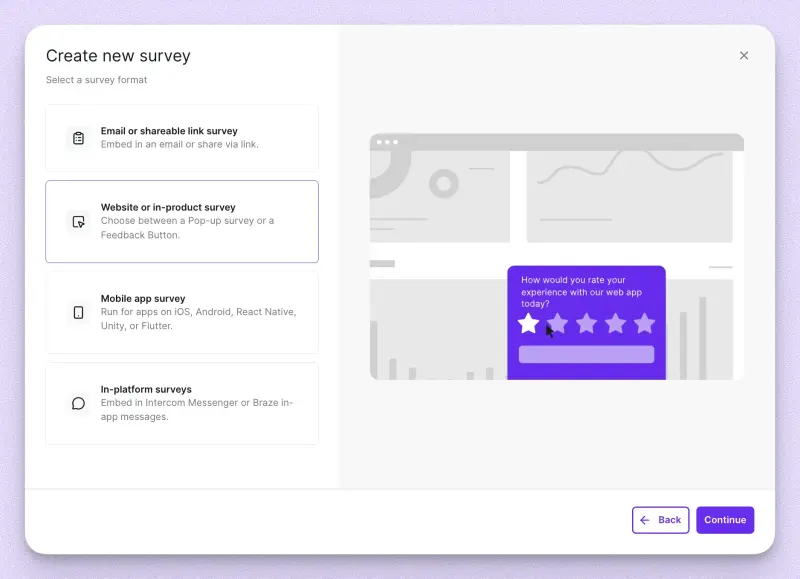
You get four formats to choose from:
- Email or shareable link survey: embed it in an email or share it via a link;
- Website or in-product survey: choose between a pop-up survey or a feedback button;
- Mobile app survey: for apps on iOS, Android, React Native, Unity, or Flutter;
- In-platform surveys: embed the survey in Intercom Messenger or Braze in-app messages.
“We love the Intercom integration which makes it easy to get the surveys in front of our users right in our product, rather than sending by email where they are easily missed.” (Verified User in Information Technology and Services, G2)
After that, starting from scratch means working with the survey editor without a baseline given from the template or the AI survey creation.
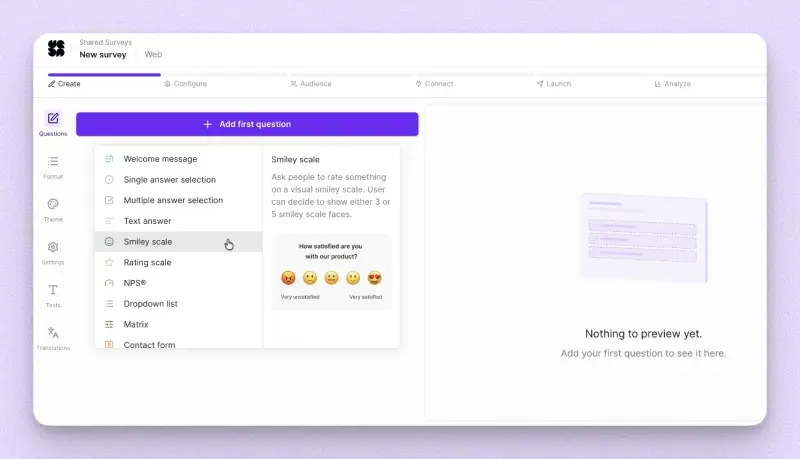
You add in your questions, one-by-one, choosing from 12 options, from Smiley scales to Matrix questions.
If you still want to get a bit inspired first, you can choose your questions from a library of over 900 ready-to-use examples.
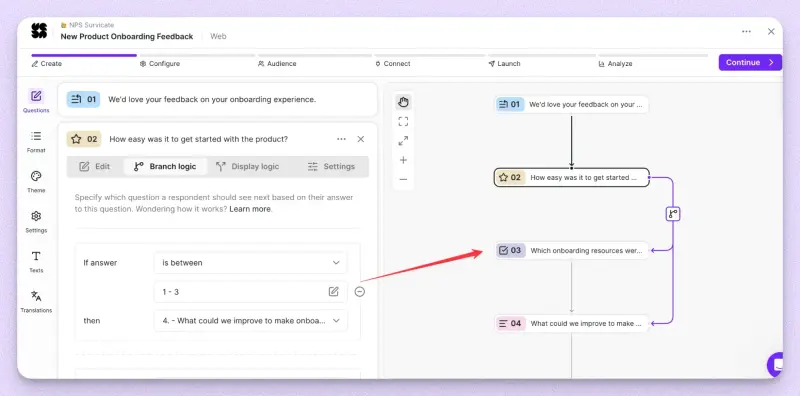
From there, you set up branch or display logic, tweak the microcopy, and change the theme.
Again, you’ll always see the effect of the applied changes right as they happen with the live survey preview on the right.
Every change shows up instantly on the live preview, which you can also click through to test your logic.
It comes with light and dark mode, mobile and desktop views, and full-screen mode. For website surveys, it even shows the pop-up on a mock page, the way your users will see it.
So where SurveyMonkey’s builder fills the screen with one question’s settings, Survicate keeps the questions, settings, and preview side by side.
Much less scrolling, and much less of that WordPress-in-2010 feeling. 😉
Winner: Survicate, unless you need a niche form
SurveyMonkey has a built-in Audience panel, so it’s the better pick for reaching people outside your customer base.
For everything else, Survicate makes survey creation faster and easier.
The homepage works as a control center, AI drafts surveys from a prompt in any language, templates are all built for customer and product feedback, and the builder keeps questions, settings, and an interactive preview on one screen.
You can also pick where the survey shows up first, including in-product, mobile, Intercom, and Braze.
Survey creation fire round
And for the things that aren’t really subject to personal opinions, let’s dive into some numbers and yes/no on features between both platforms when it comes to surveys specifically.
| SurveyMonkey | Survicate | |
|---|---|---|
| Templates | 400+, across HR, education, events, forms, healthcare, and more | 500+, all customer and product feedback |
| Question types | 23 (counting name, email, phone, and address as separate types), plus a question bank | 12, plus welcome and thank you screens, and 900+ ready-made questions |
| Survey builder | Classic editor with lots of scrolling, clunky settings, and a preview on a separate screen | Questions, settings, and an interactive live preview on one screen |
| Survey types | Link, email, website embed or popup, mobile SDK | Email and link, website and in-product, mobile app, Intercom and Braze |
| Logic | Page and question skip logic, disqualification logic, advanced branching, same-page logic, quotas | Branch logic, display logic, visual logic tree, question groups |
| A/B tests | Image, text, and question text A/B tests | A/B/X tests for website and in-product surveys |
| AI survey builder | ✅ | ✅ |
| Branding | Preset themes on free, custom themes and white label on paid plans | Colors, fonts, themes, logo, custom CSS, light and dark mode |
| Languages | 57 survey languages for default texts, like buttons, multilingual surveys with your own translations, uploaded as a file | Multilingual surveys with auto-translation and a respondent language picker |
💡Need feedback in more than one language?
A Platform Engineer at a global ecommerce marketplace called SurveyMonkey the "least of the... platforms that we would want to use", pointing to the lack of auto-translation and weak support.
Survicate gives you auto-translation on multiple languages.
Mobile app surveys: who controls the trigger?
Got a mobile app? Both tools can run surveys inside it. The difference is who decides when they show up and how easy it all is to set up.
In SurveyMonkey, you create a Mobile SDK collector for iOS or Android, grab the survey hash, and hand it to your developer.
When and where the survey appears is set in your app’s code. So moving a survey from the checkout screen to the profile screen means another round with your developers.
Want your product or marketing team to manage targeting from a dashboard instead? That’s GetFeedback, a separate product with separate pricing.
And if your data sits in SurveyMonkey’s European data center, the Mobile SDK isn’t available at all.
In Survicate, your developer installs the SDK once (iOS, Android, React Native, Flutter, or Unity) and tags the screens and events you care about.
From there, it all happens in the Survicate panel:
- target by screen, event (like a user tapping “Purchase”), user attributes, device language, or screen orientation;
- run several surveys in one app without them colliding;
- set recurring surveys and workspace-wide throttling, so nobody gets flooded;
- pass user IDs and attributes through the SDK, so every response shows who answered.
No code changes every time you want to tweak who sees what.
Winner: Survicate, for in-app feedback your team can actually manage
Both tools can survey users inside your app. But in SurveyMonkey, every targeting change goes through your developers, and dashboard-managed triggers need GetFeedback on top. In Survicate, developers set up the SDK once, and your team handles targeting, timing, and frequency from the panel, with every response tied to the user who gave it.
Respondent identification: do you know who answered?
We touched on the fact that SurveyMonkey is mainly used to collect feedback from external audiences. Sharing link or email surveys, right?
Connected with that is also recognizing who responded.
In SurveyMonkey, it depends on how you send the survey, and either way you’re not getting all of it there.
Email invitations sent from SurveyMonkey tell you who responded. On website embeds, you won’t know unless you ask respondents to type in their details.
On links, you pass known data yourself through custom variables (a paid feature). The catch, though, is that every respondent needs their own unique link, filled in manually or with your own script.
Seen as a reason to complain, not just by me:
“It does not have several gatekeeping and logic functions. For example, creating individualized survey links for different respondents to complete the same survey.” (Verified User in Higher Education, G2)
The other option is making respondents log in through SSO, but only on an Enterprise plan.
In mobile apps, the SDK can pass custom variables from your app’s code. Also a paid feature, and not available at all if your account is in SurveyMonkey’s European data center.
In Survicate, it’s much more automated.
You basically identify respondents with the data you already have.
Website and in-product surveys pick up the user IDs and attributes your app passes through the tracking code, and mobile surveys through the SDK (iOS, Android, React Native).
Email surveys sent from tools like HubSpot, Intercom, or Braze fill in the respondent’s details automatically through merge tags.
So a detractor score turns into “this customer, on this plan,” and you can filter results by the same attributes your team already uses.
“It integrates with Intercom so it makes it super easy for customers to give feedback without needing to add their details.” (Verified User in Computer Software, G2)
Winner: Survicate knows who answered
Once your app or email tool passes user data, every response comes tagged with who answered and the attributes you already track.
In SurveyMonkey, you get that automatically only with its own email invitations. Everywhere else, it’s unique links, extra setup on paid plans, or asking respondents to fill it in themselves.
Survey results analysis
What can you do with results in SurveyMonkey?
On the free plan, not much. I collected a handful of responses and opened Analyze results. You get question summaries, individual responses, and dashboards.
Analyze with AI, multi-survey analysis, and exports sit behind a padlock, and you get only one filter, compare, or show rule.
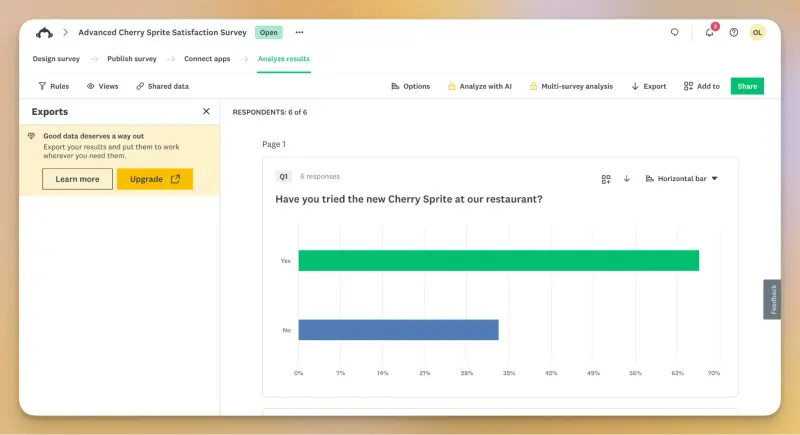
Obviously, SurveyMonkey isn’t meant to be used on the free plan, so let’s judge what we can.
Each question gets a plain horizontal bar chart (and a gauge for NPS), and the analysis area looks like it hasn’t changed in years.
You can change chart colors and labels, switch chart types (pie, trend, horizontal bar, and more), and add basic statistics.
What I liked most was dashboards.
With one click (Add to > New dashboard), SurveyMonkey turns your question summaries into a dashboard, using the first 20 supported questions (40 on Enterprise).
Then you rearrange the cards, add text, and share it with a link, even password-protected.
Very handy for a quick report.
Individual survey analysis in Survicate
When compared with Survicate, the individual survey analysis is a bit more advanced, along with the looks of the charts and all.
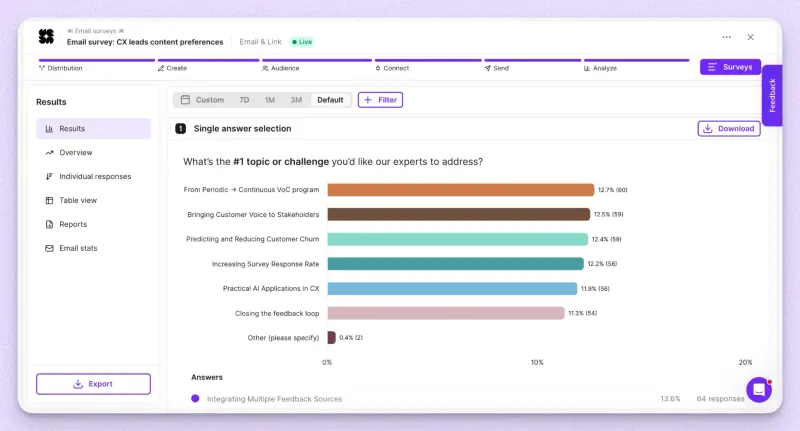
Each closed question gets its own chart with percentages and response counts, plus a Download button if you want to drop it straight into a deck. At the top, you can switch the date range (7 days, 1 month, 3 months, or custom) and add filters.
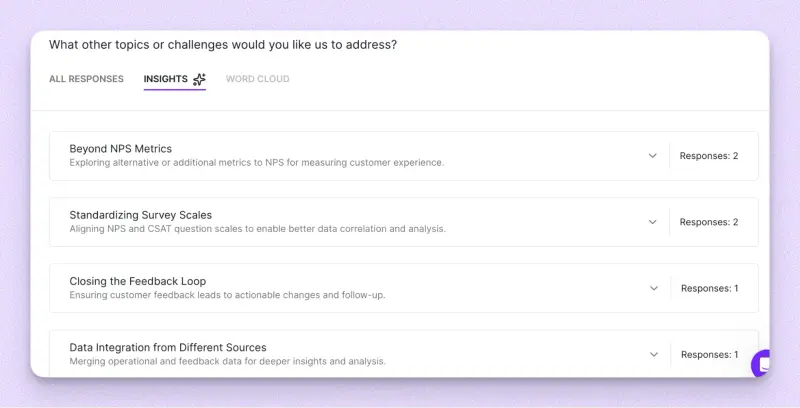
Open-ended questions are where it gets more interesting.
Next to All responses and a Word cloud, there’s an Insights tab, where AI groups answers into themes, each with a short description and the number of responses behind it.
The rest of the Results panel covers:
- Overview: responses over time, total views, completion rate, and completion time;
- Individual responses: every response tagged with who answered, plus whether it’s complete or partial;
- Table view: all answers in one table, with search and columns you can pick;
- Reports: recurring summaries sent to email or a Slack channel, daily, weekly, or monthly;
- (Live in beta) Email stats: for surveys sent from Survicate, you see how many emails were delivered, opened, clicked, bounced, or unsubscribed.
And if you do need the data elsewhere, you can export it as XLSX, CSV, PNG, or PDF, with your filters applied and open-text answers translated.
Dashboards in Survicate
Dashboards (Boards in the sidebar) are where you put results from across or individual survey questions and Research Hub insights side by side.
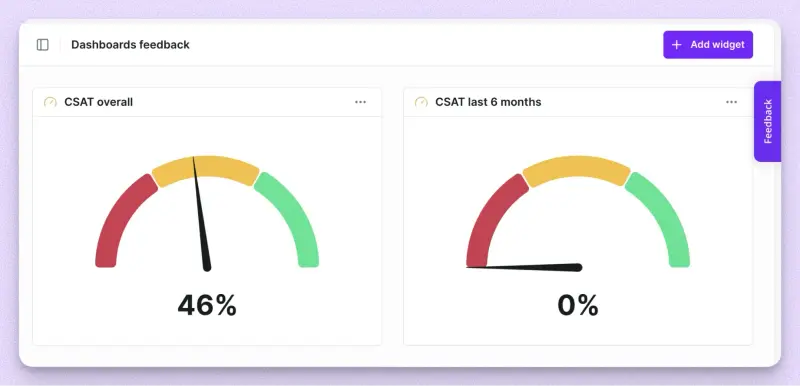
You build them from widgets, and there are three kinds:
- Single survey question: a chart for one question;
- Combined score: NPS, CSAT, or another score pulled from several surveys into one number;
- Research Hub: themes from feedback outside surveys, like reviews or support tickets.
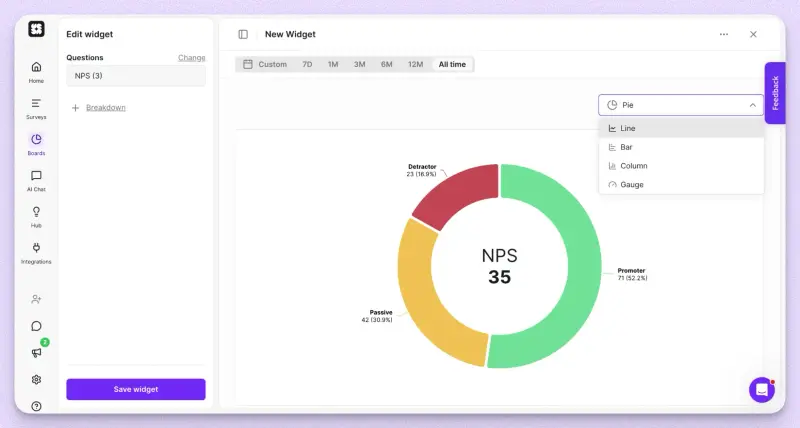
Each widget can be a line, bar, column, pie, or gauge chart, over any time range from 7 days to all time.
And with Breakdown, you split results by the attributes you already pass to Survicate, like persona, team, or plan.
So “Most useful features by persona” or “Value delivery by team” is a few clicks, no spreadsheet needed.
Analyze with AI in SurveyMonkey
And then there’s the AI analysis suite.
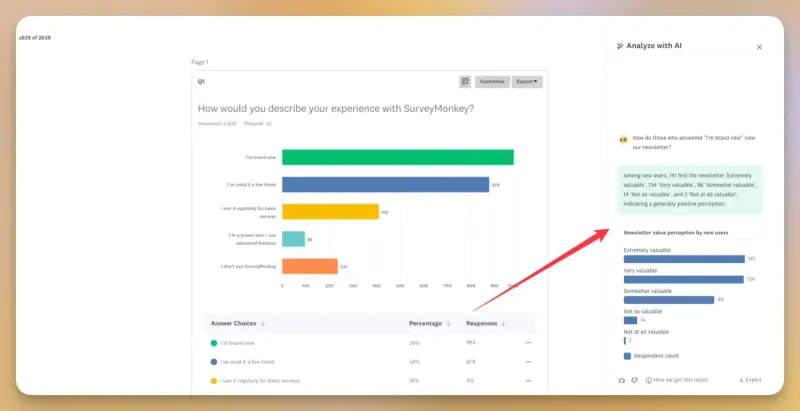
Since I couldn’t test it for free, the screenshots below come from SurveyMonkey’s own YouTube demo, AI Survey Analysis: Analyze Your Data in Seconds.
So, to get to the AI, you switch the tab to “AI analysis”.
Then, a chat panel opens on the right side of your results.
You type your question (up to 1,000 characters) or pick a suggested one, and get a short text answer plus a chart.
Under each answer, you can rate it, check “How we got this result”, or export the chart.
The rest of the suite covers:
- Thematic analysis, which groups text responses into key themes and adds a short summary;
- Sentiment analysis that labels each text response as positive, neutral, negative, or undetected, and you can edit a label if it’s wrong;
- Response quality, which flags poor responses, like profanity, gibberish, unusually short answers, or answers that copy the question.
Here’s the catch(es):
- thematic and sentiment analysis need an Advantage plan or higher;
- everything works on English surveys only;
- Analyze with AI runs only for accounts in the US data center;
- it caps your questions at 20 prompts per survey on Advantage, 50 on Premier, unlimited only on Enterprise;
- Analyze with AI can’t answer questions about “Other” textbox responses from Multiple Choice, Checkboxes, and Star Rating Scale question types;
- Analyze with AI and thematic analysis work on surveys with up to 10,000 responses.
Users notice the gaps, too:
“I also wish it would allow AI summary results for smaller surveys to get a generalized answer to add to summary slides for executives.” (Megan F., Sr. Manager of Inside Sales and Customer Success, G2)
Qualitative AI analysis across many sources in Survicate
Now, Survicate’s AI works on more than just direct feedback, aka, surveys.
It reads everything you connect to Research Hub, which can be 15+ sources.
From surveys, App Store reviews, support conversations, call transcripts, uploaded files, Slack conversations, Zendesk tickets, and more.
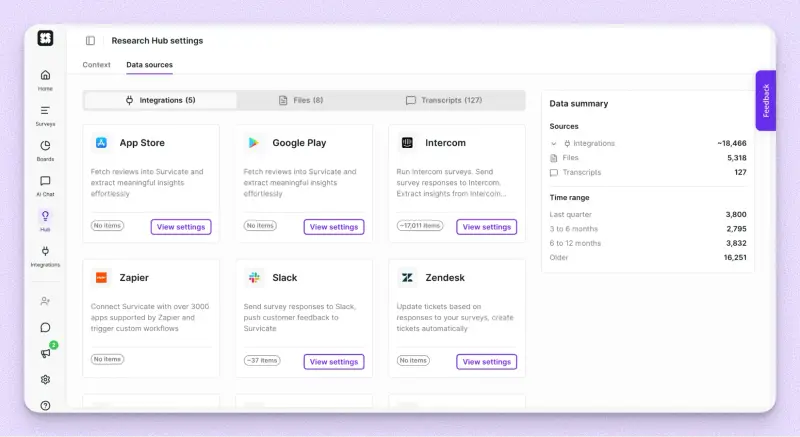
That way you get a connected hub for all customer feedback, both direct and indirect.
In our workspace, that’s a total of around 24,000 pieces of feedback, in one place.
A real user example:
“Instead of going through hundreds of survey responses one by one, I bring together survey results, support conversations, and other customer feedback in the same place. The AI does a great job of grouping similar themes, highlighting recurring issues, and surfacing patterns that would take me much longer to find manually.” (Yauhen D., G2)
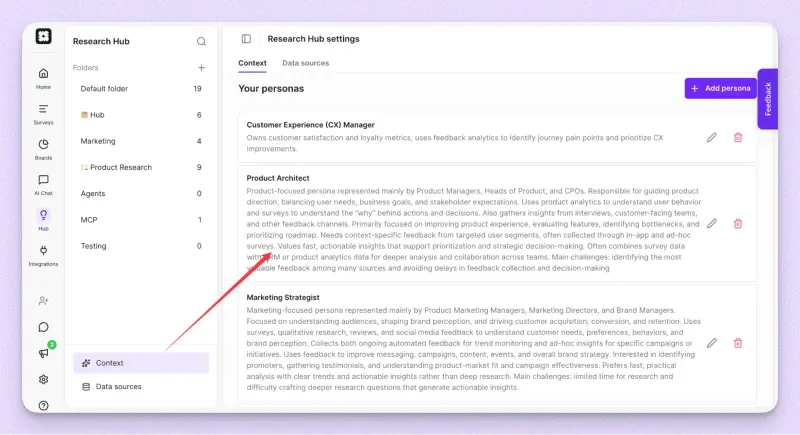
Before any analysis happens, you can also give the AI some context: your company description, product areas, and personas.
So when it groups feedback, it knows what “Research Hub” or a “Product Architect” means for your business.
Research projects
To answer a specific question, you start a research project.
For example, I imported 50 SurveyMonkey G2 reviews and asked for an analysis of the sentiment, strengths, and pain points its users point to.
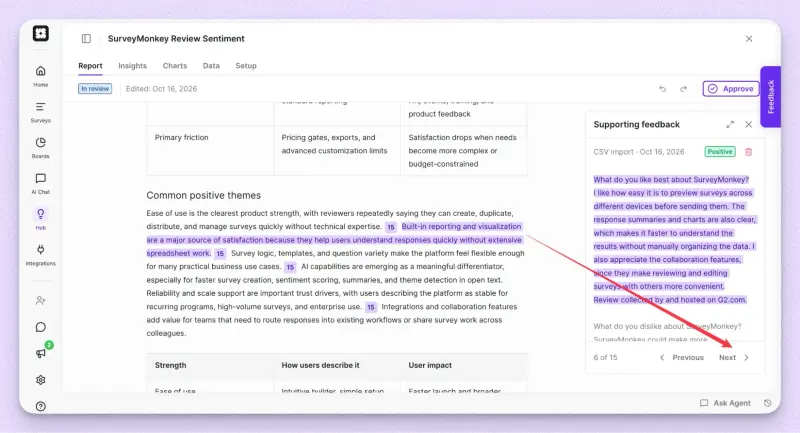
What I got was an editable report with themes, tables, and a summary, where every claim links to the reviews behind it.
The Insights tab lists what the AI discovered on its own. You can track an insight over time or mark it as resolved.
No English-only limit, no prompt caps per survey, and no need to switch on tagging first.
You define the sources, the project description, the filtering, the timeframes, controlling what the report should look like, what it should analyze.
You can add charts to help visualize the findings, edit the report, and approve only when you’re satisfied with the end result.
AI Chat
Then there’s AI Chat, which works across all of it.
You pick the sources and time range, and ask something like “What are the most requested features?” or “Why are customers on the Pro plan churning?”
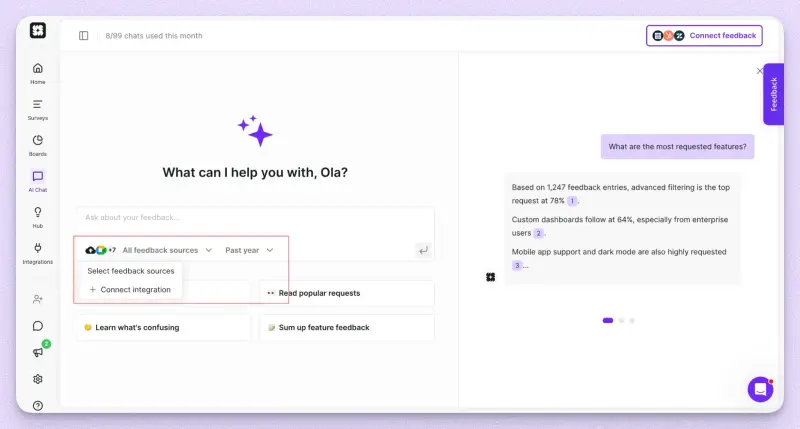
Every answer comes with numbered sources.
Click one, and you see the original response, its sentiment, and who left it: email, company, device, and any other attributes you pass to Survicate.
Winner: Survicate for feedback, SurveyMonkey for statistics
SurveyMonkey is the better pick for quant research and statistics, with crosstabs, significance testing, and SPSS export on paid plans.
For everything else, Survicate goes further. Its AI analysis works across surveys, reviews, tickets, and call transcripts in one place, in any language, without per-survey prompt caps. And every finding links back to the customer who said it.
MCP battle: SurveyMonkey vs Survicate in Claude and ChatGPT
While we’re on AI…both tools now plug into AI assistants.
So which one turns Claude or ChatGPT into a better feedback analyst?
SurveyMonkey AI Connectors
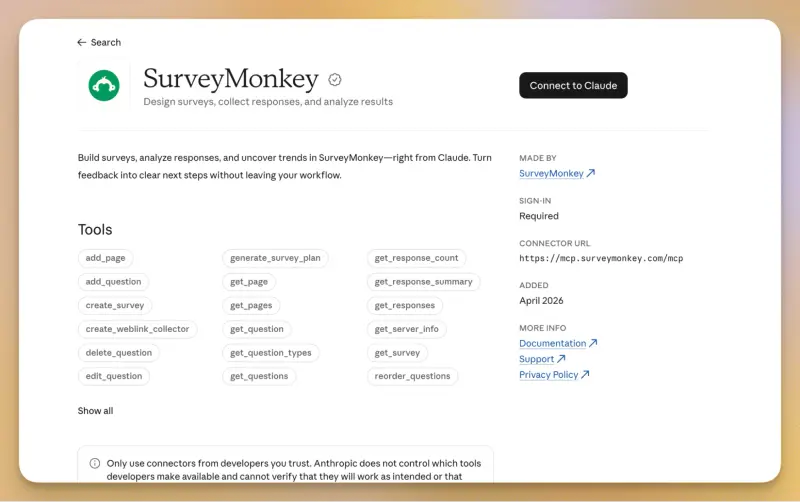
SurveyMonkey connects with Claude and ChatGPT on all plans. According to SurveyMonkey, you can create surveys, analyze results, and surface insights without leaving your AI workspace.
So I gave it a quick test run.
Connecting it took a minute, and summarizing survey questions worked fine.
Creating a survey worked too, with one small annoyance: instead of a link, you get a survey ID. So to actually see or edit what Claude built, you have to log in to SurveyMonkey and find it yourself.
Still, it does the job, and users like it:
“I love that they have integrated an MCP with Claude so that I can build surveys, review insights, and dissect the data all within my conversation with Claude.” (G2)
One catch for European teams, though:
“I'm missing the ChatGPT integration which is not available for EU users...yet” (Verified User in Hospital & Health Care, G2)
Survicate MCP
Survicate MCP connects your feedback to Claude, ChatGPT, and other AI assistants.
Through it, your assistant can:
- create draft surveys;
- read survey results, down to single questions;
- answer questions about your feedback in plain language;
- work with Research Hub: research projects, insights, and notes, across all connected sources.
When you create a survey, you get a link straight to it in Survicate, so you can jump in and tweak it right away.
But that last point is the difference that matters. Your assistant isn’t limited to survey results.
Through Research Hub, it can work across surveys, reviews, support tickets, and call transcripts at once.
And our customers already feel it:
“Before the Survicate MCP, I was exporting survey CSVs, tidying them in Excel, and handing the files to Claude. Now I skip all of that and just ask.” (Tash Apperley, Product Manager at Matrix)
“We already did our thinking in Claude. Survicate MCP brought the customer evidence into it.” (Lee Munroe, VP of Product Design at OneSignal)
“The Survicate MCP isn’t a nice-to-have for us. It’s the reason we can actually use our feedback at scale.” (John Bacon, VP Product at GigSalad)
Winner: Survicate reaches all your feedback
Both connect fast and handle surveys well. But Survicate’s MCP also reaches the Research Hub, so your assistant can analyze all your customer feedback, not just one survey at a time.
Integrations, aka, connecting the feedback
SurveyMonkey lists 200+ integrations. So why do teams still end up exporting CSVs?
Here’s what we hear from teams moving off SurveyMonkey:
A Senior Business Intelligence Analyst at an immersive entertainment company told us they export from SurveyMonkey and upload to Databricks by hand, which is “very counterproductive”. Automating it wasn’t an option either: they were quoted $30,000 a year for API access.
A VP of Customer Engagement and Product at a digital media agency tested SurveyMonkey with HubSpot, but it needed Zapier as a middleman, which created “so much, many more levels” of complexity.
Another ex-SurveyMonkey user at a multi-brand company put it like this:
“It also isn’t integrated properly into any of our platforms. So everything’s still sort of at each end done via CSV.”
Even happy users of the Salesforce integration see the friction:
“Salesforce integration is somewhat flexible but can be finnicky to use and adapt to work as we would like.” (Verified User in Health, Wellness and Fitness, G2)
Some integrations aren’t available even on the Enterprise plan, but require an additional purchase, like Salesforce or Marketo.
Survicate connects with fewer tools, but the native integrations are very strong.
Growth covers 25+ native integrations, like HubSpot, Intercom, Zendesk, and Slack. Pro adds Salesforce Sales Cloud, Marketo, and more, for 45+ in total.
So instead of exporting, feedback goes both ways: customer data shapes who sees the survey, and responses flow back to the customer’s profile.
And that’s exactly what our customers use it for:
“With Survicate feeding data into Braze and Intercom, we can act on feedback instantly, whether it’s driving referrals or proactively supporting users at risk of churning.” (Aura Arias, Head of CRM at MAJORITY)
“I love how the Survicate and Slack integration helps my team receive CSAT and NPS responses in real time and follow up immediately if needed. These responses are fed directly from the integration Survicate has with Zendesk!” (Director of Client Success)
“Survicate’s simple yet powerful tools gave us the ability to deliver surveys quickly to our users through their Intercom integration. Engagement is 10x that of surveys delivered through other channels.” (Director of User Experience)
Winner: Survicate, fewer but deeper
Fewer integrations on paper, but the ones that matter for customer feedback work natively.
HubSpot integration: a closer look
On the HubSpot Marketplace, SurveyMonkey’s app averages 2.7/5 across 58 reviews, with almost half (48%) at 1 or 2 stars. Survicate’s averages 4.6/5 across 70, with 7% at 1 or 2 stars. And that’s despite SurveyMonkey having far more installs (around 13,000 vs 2,000).
I went through every review for both apps. What SurveyMonkey users complain about most is what Survicate users praise most:
| SurveyMonkey for HubSpot | Survicate for HubSpot | |
|---|---|---|
| Responses on the contact record | 8 praise, 13 complain about data mapping | 15 praise, 6 complain about data mapping |
| Surveys sent from HubSpot emails | 13 complain about invitation emails | 8 praise surveys embedded in HubSpot emails |
| Setup and sync | 12 report sync failures, 9 hard setup | 33 praise easy setup |
| Support | 6 complaints, 1 praise | 22 praise, 1 complaint |
And SurveyMonkey’s issues aren’t new: 2026 reviews raise the same problems as 2021 ones.
A VP of Customer Engagement and Product at a digital media agency called SurveyMonkey’s native integration “absolutely terrible”. They tested the Survicate connection and said it “worked incredibly well”.
“We have this integrated with Hubspot as soon as client is closed won in out pipeline, we are able to automatically trigger this survey embedded in hubspot email, which simplifies a lot of things.” (Shyam S., Team Lead, G2)
Winner: Survicate, by a clear margin
Its HubSpot app writes answers to contact properties, triggers workflows, and embeds surveys in HubSpot emails, the exact areas where SurveyMonkey’s app struggles.
PS, we’ve also compiled a list of the 9 best NPS tools that integrate with HubSpot. SurveyMonkey didn’t make the rating, but after reading through those Marketplace reviews, I’m guessing that won’t come as a surprise. 🙈
Security and compliance
Both tools cover the basics, like ISO 27001, GDPR, AES-256 encryption at rest and TLS 1.2 in transit, 2FA, SSO, and HIPAA.
The differences are in the details.
SurveyMonkey has more certifications. On top of ISO 27001, it holds SOC 2 Type II, ISO 27701, and PCI. Survicate is ISO 27001 certified, with its SOC 2 audit underway, and its infrastructure runs on AWS, which is SOC 2 certified.
Where your data lives is another story. Survicate hosts all data on AWS in Ireland (EU) on every plan.
SurveyMonkey has data centers in the US, Canada, and Ireland, but choosing where your data is stored is an Enterprise feature.
But if you do choose to store your data outside of the US, or turn on HIPAA or Enhanced Sensitive Data Protection, Analyze with AI will no longer be available.
For some teams, that’s not optional:
“We can host our data in the EU, which we have to do by law.” (Verified User in Hospital & Health Care, G2)
Speaking of AI, it covers the last security-specific difference.
SurveyMonkey trains its own models on de-identified customer data and uses OpenAI or other third-party providers for features like Analyze with AI.
Survicate never uses your data to train AI models, and every AI insight links back to the original feedback.
Winner: SurveyMonkey for certifications, Survicate for data residency and non-training
SurveyMonkey for certifications. Survicate for EU data residency on every plan and keeping your feedback out of AI training.
SurveyMonkey vs Survicate: Pricing
The two tools charge in completely different ways, and that changes which one comes out cheaper.
SurveyMonkey charges per user. One person can start at USD 39 a month, billed annually.
But team plans start at three users and are only billed annually, so the “30 per month” on the Team Advantage card is really USD 1,080 a year before you send a single survey. And if you go over your response limit, every extra response costs USD 0.15.
“No monthly options for Advantage plan, it is important for me as usually I don't have research in the 1st quarter of the year.” (Patrícia K., Market Research Specialist, G2)
Survicate charges by response volume and research data points, with seats included. Starter comes with 5 seats and Growth with 10, so adding teammates doesn’t change the price. What does change it is how many responses you collect.
| SurveyMonkey | Survicate | |
|---|---|---|
| Pricing model | Per user | Per response volume, research data points, with seats included |
| Smallest plan | From $39/mo for one user, (annually 468/yr), or $149/mo billed monthly | Starter: $89/mo, billed monthly, 5 seats, 2 active surveys, 500 responses/mo |
| Entry team plan | Team Advantage: $30/user/mo, billed annually, 3 users minimum | Growth: from $56/mo, billed annually, 10 seats |
| Mid tier | Team Premier: $92/user/mo | Pro: from $349/mo |
| Enterprise | Custom quote, 5+ users | From $569/mo |
| Responses | 50,000/yr (Team Advantage), 100,000/yr (Team Premier), $0.15 per extra response | From 100/mo on Growth (up to 1,500/mo), custom yearly pool on Pro |
| AI analysis | Analyze with AI and thematic analysis on paid plans, capped at 20 or 50 prompts per survey below Enterprise | Research Hub, AI Chat, and MCP on every plan |
| Integrations | 200+ integrations, but often either available on Enterprise, or as an add-on like Salesforce or Marketo | HubSpot and Intercom on Growth, Salesforce on Pro |
| SSO and HIPAA | Enterprise | Enterprise |
| Free trial | No, only a limited free plan | 10 days, no card required |
What does a full SurveyMonkey setup actually cost?
SurveyMonkey’s pricing page shows only part of the bill. To cover what Survicate does in one platform, you’d need:
- SurveyMonkey: from $1,080/yr for Team Advantage (3 users minimum);
- GetFeedback for in-app and website feedback: custom quote;
- Some integrations, like Salesforce, have to be purchased as an add-on: Enterprise plan only, sold on top.
Only one of those has a public price. Everything else means a sales call, a separate contract, and another tool your team has to learn.
With Survicate, in-app, mobile, website, and email surveys, Research Hub, and integrations all come in one subscription.
So SurveyMonkey is cheaper for a solo user or a small team sending lots of surveys, sticking to the core SurveyMonkey platform.
Survicate gets cheaper as more people need access, once feedback needs to reach your CRM, or if you need everything that you’d have to purchase the full SurveyMonkey suite for.
One thing to watch with Survicate: pricing is also its most common G2 complaint, so estimate your response volume before you commit.
If you want a deep dive of SurveyMonkey pricing, check out our dedicated article on the topic here.
Survicate vs SurveyMonkey: final verdict
Both tools make it easy to run a survey. The difference is who you’re asking and what happens after they answer.
SurveyMonkey is for you if... you run standalone surveys and need answers fast, often from people outside your customer base, and choose the US to host your data. Think:
- market research with a built-in panel;
- HR pulse, engagement, and training surveys;
- course evaluations and research in education and nonprofits;
- quant research that needs crosstabs, significance testing, or SPSS export.
It’s a familiar name, and that counts for something:
“Great interface and widely accepted....recipients trust it” (Luke D., Group General Manager, G2)
And about the data hosting…
Hosting your data in SurveyMonkey’s EU data center (Enterprise only) comes at a cost: 14 features, including the Mobile SDK, the Audience panel, and Benchmarks, plus most integrations and Analyze with AI, aren’t available there.
Survicate is for you if... you collect feedback from your own customers and actually want to act on it. It’s an especially good fit for high-volume B2C digital products and consumer apps, where feedback needs to reach thousands of users in the moment. Think:
- product and research teams running in-product and mobile surveys at the right moment;
- CX teams tracking NPS, CSAT, and CES, and following up with detractors;
- marketing and growth teams who want feedback to shape segments and campaigns in HubSpot, Braze, or Intercom;
- anyone who wants to analyze surveys together with reviews, tickets, and call transcripts, in any language.
In short: SurveyMonkey helps you ask anyone. Survicate helps you understand your customers and act on what they say.
Start a free 10-day trial, no card required.
Author's note
Author's note (last verified: Oct 26th, 2026): Statements such as 'best' reflect our opinion and typical use cases, not a universal guarantee. This comparison is based on publicly available information and our best understanding at the time of writing. Vendors may change features, pricing, and packaging without notice. For the latest details, please check the official sources or reach out to the vendor directly.