The easy slide into Google Forms, with a Google account you already have, can be tempting. And if your main focus in finding the right survey software is your budget, then Google Forms is a good choice.
But is it a perfect one?
Especially when compared with SurveyMonkey, Google Forms seems, in most cases, insufficient. Often leaving us to fend for ourselves, with mere 17 templates, no questions bank, or tips for improving surveys.
On the other hand, SurveyMonkey gives you more advanced features, but not all for free. The limitations on the free plan are actually quite heavy.
In this article, I dive head-first into a direct SurveyMonkey vs Google Forms comparison. You can expect a side-by-side view of the features, an overview of their limitations, user reviews examining, and more.
And yes, I have tested both tools, tinkered with the features, settings, and pulled apart the pricings.
One transparency note before we move on: this review is written from the Survicate perspective, so I’ll also include Survicate where it helps add context. The goal is to make the comparison clearer, not only between a free form builder and a survey platform, but also against a customer feedback tool built for collecting, analyzing, and acting on feedback across channels.
Tl;dr
If your main focus is:
- your budget, then choose Google Forms. It serves the basic purpose of creating forms, surveys, and quizzes, with the fundamental question types and design options available. You won’t have to pay a cent or create a separate account; Google workspace is enough. Your responses won’t be limited, the questions you can add either. Plus, the results can still be collected and analyzed in Google Sheets.
- more advanced features, then choose SurveyMonkey. It will go beyond basic question types. Think AI survey creator, data analysis, lots of templates, and diverse targeting. But beware of a steep learning curve, not-so-modern designs, and pricey subscriptions.
SurveyMonkey vs Google Forms (and Survicate): Ratings and Verdicts for Surveys in 2026
| Tool Name | G2 Rating | Known For | My 2 Cents |
|---|---|---|---|
| SurveyMonkey | 4.4/5 | A mainstream survey platform with templates, distribution options, AI survey creation, and paid analysis features. | Stronger than Google Forms on paper, but the free plan is restrictive, many useful features sit behind paid plans, and the builder can feel heavier than it should. |
| Google Forms | 4.6/5 | Free, familiar form and survey creation with unlimited responses, basic logic, Google Sheets analysis, and no separate account needed. | A surprisingly capable free option for simple surveys and forms. It starts to fall short when you need stronger branding, targeting, integrations, or deeper feedback analysis. |
| Survicate | 4.6/5 | Customer feedback surveys, multi-channel feedback collection, AI analysis, Research Hub, and 40+ native integrations. | The better next step when you want more than a simple form: collect feedback across channels, analyze survey and non-survey feedback together, and turn insights into action. |
SurveyMonkey vs Google Forms: in a nutshell
SurveyMonkey is a survey software with quite a bit of presence on the market, starting in 1999. It caters to various industries, from healthcare to government, and diverse positions, from marketers to HR. For a deeper look at how SurveyMonkey compares with other tools in its category, check out our SurveyMonkey alternatives guide.
Google Forms is a part of the Google Docs Editor suite, first introduced into the set of the giant’s web applications back in 2008. Like Google Docs you use on a daily basis, Google Forms is a click away from your Google account.
Reviews: what do people say?
Both Google Forms and SurveyMonkey are quite popular, which makes it easy to take a look at other people’s opinions before making any commitments.
So, let’s analyze some of the reviews coming from the users of both tools.
Google Forms: readily available and easy-to-use, yet basic
Google Forms is often chosen for its ease of use, like Janice S. says: “I chose Google Forms for its ease of use. It's really easy to create surveys or intake forms.”
Marcie P. seconds this, saying “I chose Google Forms because it was readily available. It was easy to use and it was online. And since most of my classes are online, it just made it very convenient to use between me and my students.”
On the other hand, what’s most often underlined as a con is the lack of advanced features and customization options. Like Amit B. says: “[Google Forms is] Not customizable enough, not too many options when it comes to question types, automation and more. Pretty basic.”
Muhammad Zubair S. also highlights this issue, saying: “The look and feel of the embedded forms in a website seem so generic, anyone can recognize that the forms are created with Google Forms. There are very few or limited options to customize the forms in order to enhance the form design. There are only four font styles, and no option to resize the fonts.”
If you’re already wondering what to use once Google Forms is no longer enough, we cover the best options in our Google Forms alternatives guide.
SurveyMonkey: ease of creation, diverse use cases, but limited & expensive
One G2 user describes their experience with SurveyMonkey this way: “I like the ability to easily create surveys and pass them along to others. It is easy to share with lots of people. It is also easy on the receiving end to use. Also the graphics are cute. I use it a lot for work.”
SurveyMonkey is also used in a variety of industries.
In education, just like Dawn T. “What I like best is the ability to collect responders' information. In an education setting it is not unusual for students or parents to attempt to submit multiple responses.”
Or healthcare, like Nicole Y. a Nurse Supervisor says “Survey Monkey is easy to use. We have used it in my work environment multiple times and it was easy to individualize each survey, the users were more likely to complete the survey because it was fast and efficient.”
Now, one of the few cons that stand out in terms of SurveyMonkey are its limitations.
As Christy M. puts it: “When I designed my survey, I didn't realize some features required a subscription. I spent a lot of time creating it, and then I found out very basic features need to be purchased, so I sort of had no choice but to purchase the subscription, in order to complete my project.”
Many reviews also highlight that SurveyMonkey comes across as rather expensive. Just as Eva S. says: “So for me, the one downside would be the pricing. I am a small business, and only send a couple of surveys a year, so for me spending almost $500 a year seems a bit steep. I would love to see a way to be on the free plan but to add features a la carte.”
How I did this review
Google Forms looks like the obvious choice when you want something free, trusted, and easy to share. SurveyMonkey promises more survey depth, but many of the features that make it more powerful are gated behind paid plans. While testing both tools, I kept my focus on the moments where the difference between “free and simple” and “advanced but limited” actually shows up.
My goal was to answer the question: how far can each tool take you before its limits start to get in the way?
What I looked for
I focused on the parts that usually decide whether a survey tool is enough for day-to-day business use:
- survey builder UX: how easy it is to create a survey, add questions, adjust settings, and avoid getting stuck;
- question types, templates, logic, and design options available on the free plans;
- targeting and distribution options, including sharing by link, email, embed, social, website, app, or other available channels;
- integrations with tools teams already use;
- CX use cases: whether the tool helps not only collect feedback, but also analyze responses and act on customer insights;
- pricing and free plan generosity: response limits, question limits, paid feature gates, and where the upgrade pressure starts.
How I validated the claims
I tested both tools firsthand by creating surveys, clicking through the builders, checking available settings, reviewing design and logic options, and looking at how responses are presented.
I also checked official product pages, help documentation, and current pricing pages to verify feature availability, limits, and packaging. To balance that with real user experience, I reviewed recurring patterns in G2 and Capterra reviews, plus relevant Reddit discussions.
On the 25th of June 2026, content specialist Wojciech Maroszek fact-checked and updated the entire guide to clarify comparison methodology and expand review sections.
Getting started: easy with Google vs steep SurveyMonkey hill
First, let’s analyze how easy or difficult it is to get started with each tool.
For Google Forms, all you need is your Google account. Log in to your Gmail account and head to the Google apps menu; from there choose “Forms”. That’s it.
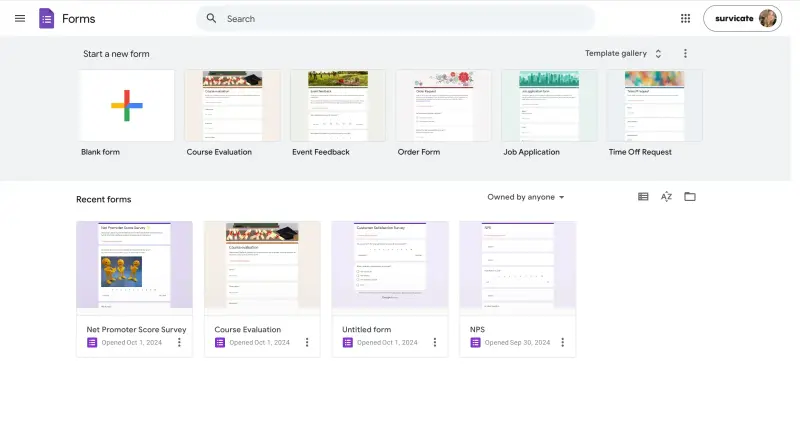
You don’t need to create another account or fight for your life trying to create that first form. That’s all because Google Forms is a simple tool. One of the reviewers even called it “basic”, which all adds to a very shallow learning curve.
For SurveyMonkey, creating an account is not rocket science, all you need is an email address. However, the tool itself is much more complex compared to Google Forms, so there’s a bit more to learn.
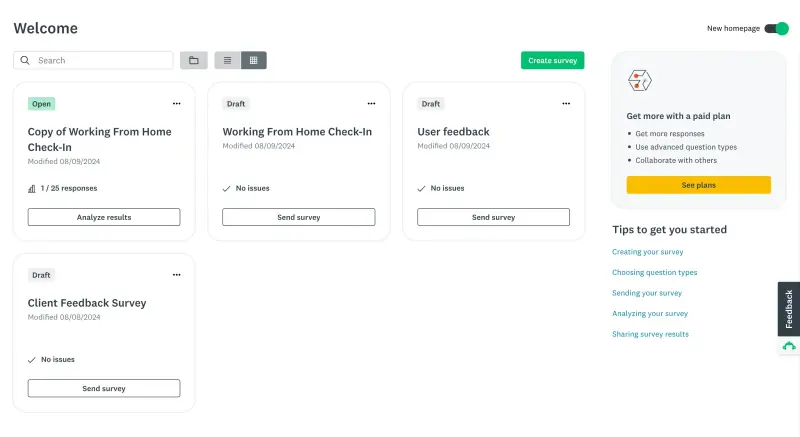
At first, there will be many options and features to figure out, all laid out on a rather outdated interface, which makes it much harder to get started with.
Side-by-side feature comparison
Once you’re logged in, you can actually test out some of the features and properly compare both tools.
I’ll focus on question types, form builders, design options, templates, and analyzing responses.
Question types
In Google Forms, the variety of question types you can use is quite generous for a free tool. It certainly provides more than SurveyMonkey in this area.
Building a form in Google Forms, you can choose to add:
- Open-text questions, including short answers and longer paragraphs,
- Choice selections, including multiple choice questions, dropdowns, and checkboxes,
- Different types of grids, from a linear scale, through a multiple choice grid, to a checkbox grid,
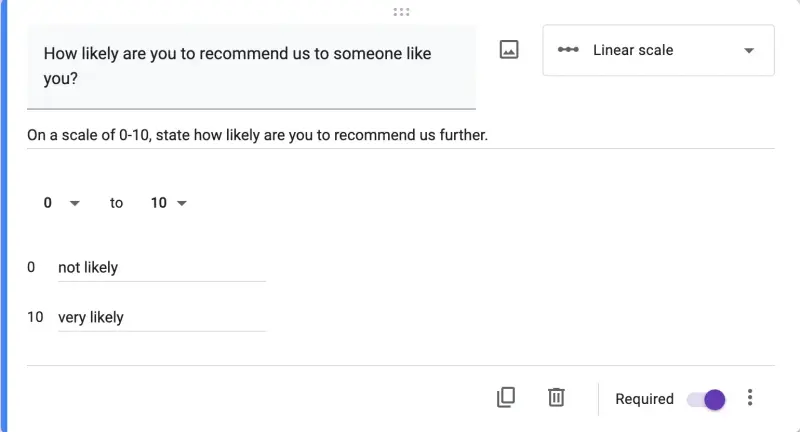
- A file upload field,
- Organizational fields, including asking respondents for date and time.
What’s more, you can complement each question with an image.
After that abundance of questions, we can now move to a SurveyMonkey form builder.
On the free plan, SurveyMonkey covers the following question types:
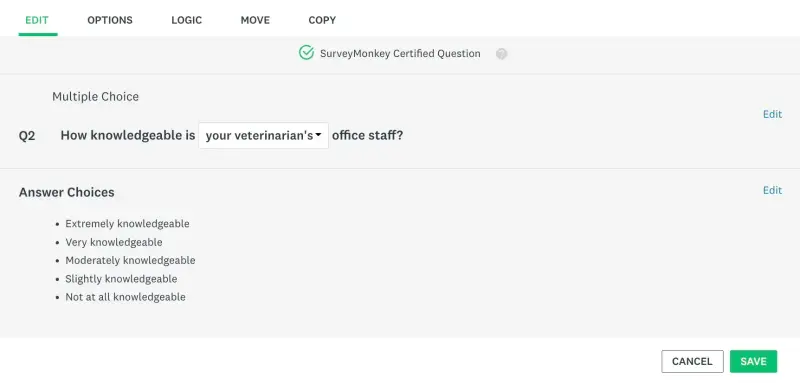
- A single textbox question,
- A Net Promoter Score question,
- Contact details, including a question about the respondent’s name, email address, phone number, and postal address,
- Organizational questions, including a date and time question,
- An open-text question,
- And finally, image-based questions.
For free, you can also add an intro page, a new page, and dividers into your surveys, but that’s about it.
💡In case it’s hard to see what the difference between the two is, Google Forms basically gives you three different types of grid-based questions and a file upload field for free, while SurveyMonkey doesn’t.
The grid-based questions can then be used to calculate essential metrics, like NPS or CSAT scores.
Now, if you decide to purchase a subscription in SurveyMonkey, you can freely use the remaining question types, including:
- a star rating,
- a Matrix grid,
- a file upload,
- a comment box and multiple textboxes,
- a slider question,
- a ranking question,
- a best/worst scale.
But also enrich your surveys with additional features, such as A/B tests.
Form & survey builders
Knowing the bricks we can use to build our forms and surveys in both tools, we should now focus more on the building experience itself.
And yet again, it’s a bit better in Google Forms.
You start off by giving your survey a title and then add your questions with the plus icon. Each new question is a multiple-choice one by default, but you can easily change that.
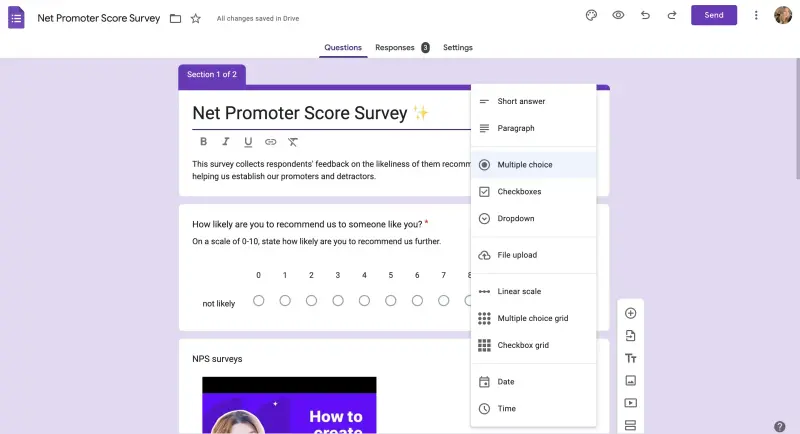
Then, depending on the selected question type, you can tinker with the settings, rename options, add images, or mark the question as required.
Additional building options come in the form of adding videos. In the popup window, you can search directly for the YouTube video you wish to add.
The builder is clean, user-friendly, and generally easy enough to figure out.
Now, when it comes to SurveyMonkey, things get a bit more difficult due to the sheer amount of options you can go for but also the unfortunate design choices. This software is not as clean and modern as Google Forms.
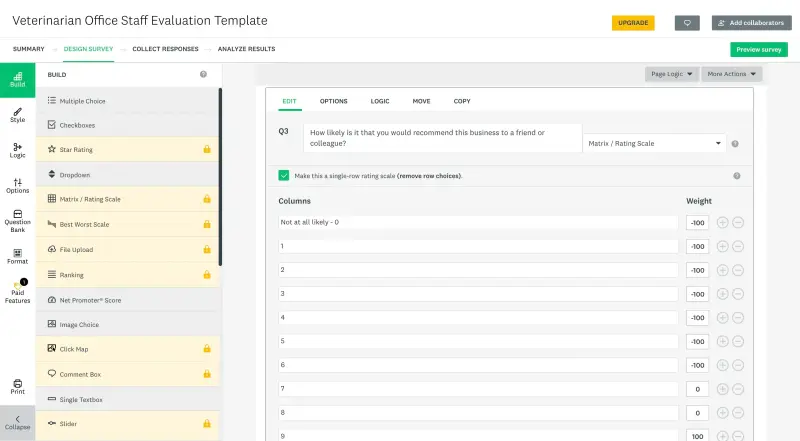
What’s more, with SurveyMonkey, minor things could become big blockers.
For example, you can’t add your questions all at once to scope your survey. You have to make sure each one is properly filled out before moving on to the next; otherwise, you might get an error.
We said this in our article comparing Typeform vs SurveyMonkey, but we’ll say it again. SurveyMonkey’s builder often feels like digging through WordPress settings.
For free plan users, a lot of the features and options, like the entire logic section, are unavailable. This can be both a blessing, making things simpler, or a curse, if you want to use advanced options.
On the brighter side, some of the interesting features are available for free, like turning your survey into a chat conversation. What’s also good to use is SurveyMonkey’s AI survey builder which may speed things up for you.
Design options
But don’t worry, you won’t be caught up in choice overload with the design options in either tool.
Speaking of SurveyMonkey’s free plan, you basically get 11 design templates to choose from, without the option to build your own custom theme. Essentially, leaving you to the graces of SurveyMonkey’s designers.
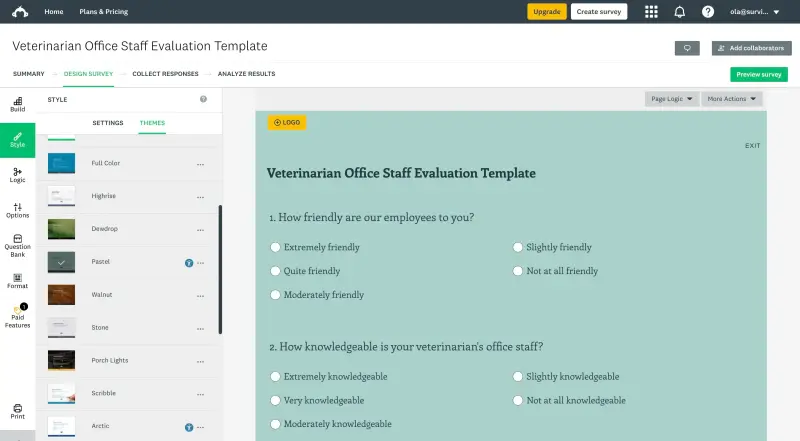
Any design options, like adding your own logo or changing the fonts, colors, or layout of the survey are locked behind the paid subscription.
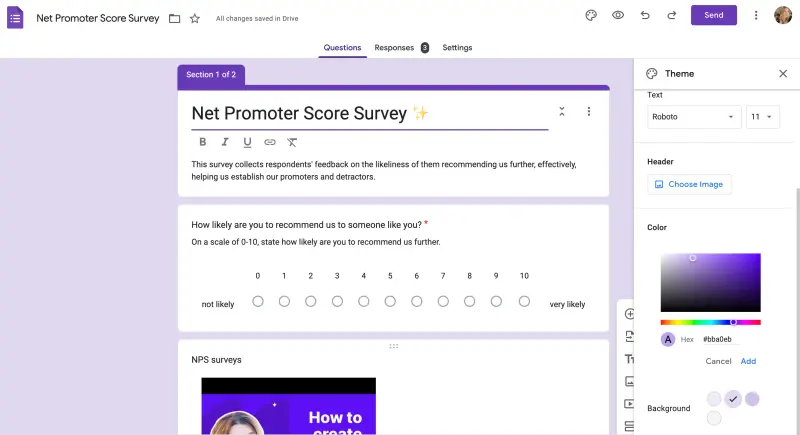
Google Forms yet again goes beyond what SurveyMonkey offers with:
- Custom background color selection (you can even go for a custom color),
- Adding a header image,
- Changing the fonts and font size of the questions and any text visible on the form.
Templates
Now, just because you can change the colors and fonts as per your wish, it doesn’t mean that Google Forms doesn’t come with any ready-made options.
In fact, Google Forms gives you 17 templates to choose from, divided into three categories: work, personal, and education.
The work forms are not that much focused on collecting feedback, though. They’re more administrative. One of the six templates in this category is a time-off request, for example. The personal forms range in topics, from party invitations to event registrations.
Educational form templates seem to be the most cohesive, targeting teachers, professors, and school administrators. Here, the five templates available are: a blank quiz, an exit ticket, an assessment, a worksheet, and a course evaluation form.
💡SurveyMonkey on the other hand offers a whole library of templates when compared with Google Forms. The templates are split into 22 categories (or 20 if you only count categories with templates available on the free plan). Some of which include HR, marketing, education, and health care.
One caveat, though, is the fact that some templates may contain premium features.
If you’re looking for free software, you won’t be able to fully enjoy some of them. Or you’d be forced to customize them, cutting out the paid features.
Analyzing responses
To analyze responses in Google Forms, you simply go to the survey that you want to check the results of, and switch the tab to “Responses”.
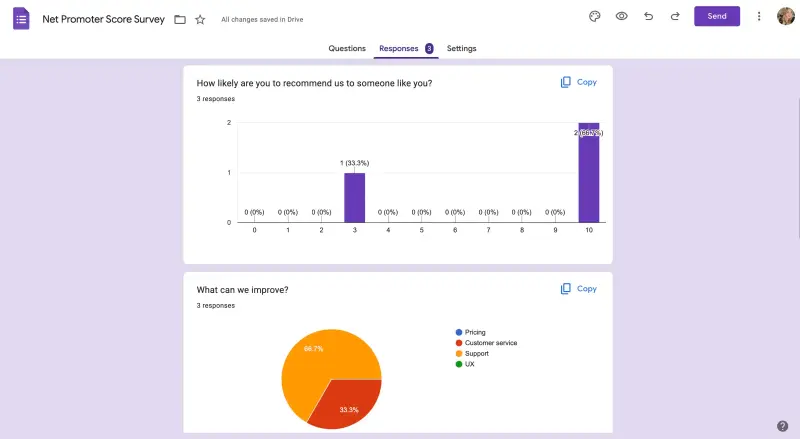
There, you’ll find a summary of all the responses neatly presented in the form of charts, whether bar or pie. But you also get to check each completed form and answers to individual questions.
To make your life even easier, Google Forms allows you to link the responses to Google Sheets, either by choosing an existing file or creating a new spreadsheet.
Overall, the responses are clean and easy to read. If we had to pick at something, it would be the fact that you can’t see which forms got responses and which ones didn’t when viewing all on the dashboard.
In turn, SurveyMonkey’s results are a little harder to figure out.
Going into analyzing results, first, you’ll see a chart-based summary of each answered question. Yet, although it seems similar to Google Forms, the graphs are not as neat.
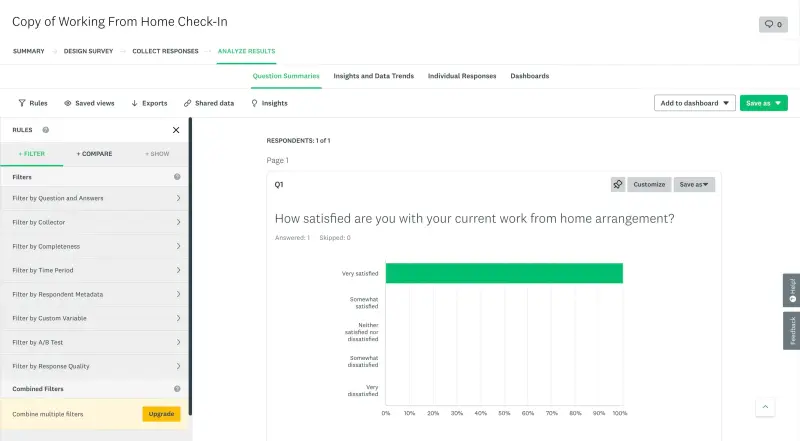
But besides just question summaries, you can switch the tab and dive into the insights and data trends SurveyMonkey identified, analyze individual responses, and even create your own dashboards, adding specific charts or responses to them.
What can significantly help with analyzing responses in SurveyMonkey are the additional options.
Like, rules.
Rules allow you to apply a variety of filters to the responses. For example, going by time period or the level of response completeness. But also comparing specified results, or showing only specific questions or survey pages.
Unfortunately, combining two or more rules and filters is not available for free. So, in order to check all angles, you’d have to spend quite a bit of time checking off each filter individually.
In the same realm, SurveyMonkey hides more features behind a paywall. Like AI responses analysis called Insights.
The Insights feature is currently composed of two main components:
- Sentiment analysis, which automatically categorizes text responses as positive, negative, or neutral.
- Response quality, which basically identifies low-quality responses by scanning them.
But going back to the dashboard, it’s easier to figure out which of your surveys even have answers since SurveyMonkey gives you the number of responses right under each survey.
What’s more, SurveyMonkey helps you out further by applying the right button under each survey, depending on the action needed.
You can hop right into:
- editing unfinished surveys,
- sending finished surveys,
- and analyzing results when responses have been submitted.
Let’s talk limits: free plans’ features & responses
Google Forms, as we mentioned before, is a completely free tool. The only requirement is having a Google account.
Therefore, you shouldn’t anticipate any limits on your journey with Google Forms, neither when it comes to the number of responses you can collect or questions you can add.
SurveyMonkey gives you a free plan and an array of paid subscriptions to purchase for additional features.
So, let’s take a closer look and compare what you can get for free with each tool, sort of summarizing what we already analyzed in-depth above.
SurveyMonkey vs Google Forms: Free Plans Comparison
| Features | Google Forms | SurveyMonkey |
|---|---|---|
| Templates | ✅ [17] | ✅ [200+ free templates] |
| Question Types | 11 | 11 |
| Multiple Choice | ✅ | ✅ |
| Dropdown | ✅ | ✅ |
| Rating scale | ✅ | ❌ |
| Matrix | ✅ | ❌ |
| File upload | ✅ | ❌ |
| Adding images | ✅ | ✅ |
| Adding videos | ✅ | ❌ |
| No. of questions to add | unlimited | 10 |
| Responses to collect | unlimited | 25 responses per survey |
| Custom background color | ✅ | ❌ |
| Font selection | ✅ | ❌ |
| Header image | ✅ | ❌ |
| Form logic | ✅ | ❌ |
What’s worth noting is the fact that SurveyMonkey limits the number of responses you can collect for free to 25 per survey, while Google Forms doesn’t have any limits.
SurveyMonkey’s unique points
But let’s now face the obvious fact that has to be stated to properly compare SurveyMonkey vs Google Forms.
Not every software platform out there is made to be used for free. And that’s certainly not the case with SurveyMonkey.
Their free plan basically serves as a way to get to know the tool and play around with the features. See if it fits your needs and your workflow.
It is purposefully heavily limited.
SurveyMonkey caters more to those who crave more advanced features, collect a lot of responses, wish to have a variety of embedding options, and want to analyze large amounts of data at once.
Saying that, we can now take a look at the unique parts of SurveyMonkey that are available only to paying customers, yet make the tool distinct.
Diverse ways of sharing the survey
Starting off with basics, sharing your survey.
Google Forms allows you to share your survey via email, by sharing a dedicated link, or by embedding an HTML code on your website.
Besides the fact that there aren’t many embedding options, we encountered one small error.
You get the option to shorten the URL of the survey link you’re sharing, but the shortened URL does not work if your respondents are currently not logged in and you require it.
If you want to avoid any roadblocks, you can disable the sign-in requirement in the settings. Or make sure to let your respondents know they have to be logged in for the survey to work.
Google Forms stands out by allowing you to send your survey to respondents via email, a feature that SurveyMonkey locks behind a paywall.
And even though most are premium features, SurveyMonkey comes with more options for survey sharing:
- Sharing a link, [free]
- Embedding on a website, [free]
- Posting a link on social media, [free]
- Embedding in a mobile app, [paid]
- Adding data manually, [paid]
- Using the kiosk mode (on a tablet or mobile phone), [paid]
- Sending by email, [paid]
- Sending by text, [enterprise plan needed].
Integrations
Google Forms smoothly works with other Google apps. But SurveyMonkey comes with a whole army of integrations.
From CRMs, like Salesforce or monday.com, to Google tools, like Google Sheets or Google Drive, and marketing software, including Mailchimp and HubSpot.
Some of the integrations are native, others require using Zapier.
AI survey builder
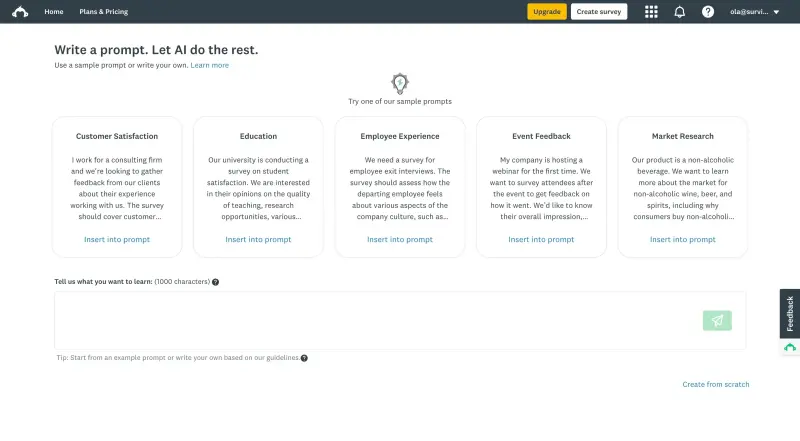
Unlike Google Forms, SurveyMonkey comes with an AI survey builder. It’s a feature that basically generates the survey content for you after prompting.
AI data analysis
As mentioned before, another unique to SurveyMonkey feature is the AI data analysis, which analyzes the sentiment of the collected feedback and identifies low-quality answers.
I can’t test it out being on the free plan, but I’m positive it’s useful when analyzing large batches of data.
More than Google Forms, easier than SurveyMonkey: meet Survicate
After reading this comparison article, you may still find yourself in a conundrum.
Why?
Google Forms may be free and easy to use, but it’s just not enough to meet your needs. SurveyMonkey may have advanced features, but turns out to be expensive and outdated.
So what if Google Forms feels too limited, but SurveyMonkey comes with trade-offs you’d rather avoid?
You don’t necessarily have to choose between simple forms and advanced survey software. There’s another option.
Survicate is a customer feedback tool that combines the ease of use you’d expect from Google Forms with the advanced survey capabilities you’d look for in SurveyMonkey. But it also goes beyond surveys: you can connect feedback from multiple sources, analyze it in one place, and act on insights through integrations with tools like HubSpot, Zendesk, and plenty others.
Here’s why Survicate makes sense if you want more than Google Forms without accepting the usual trade-offs of traditional survey platforms.
User-friendly and modern
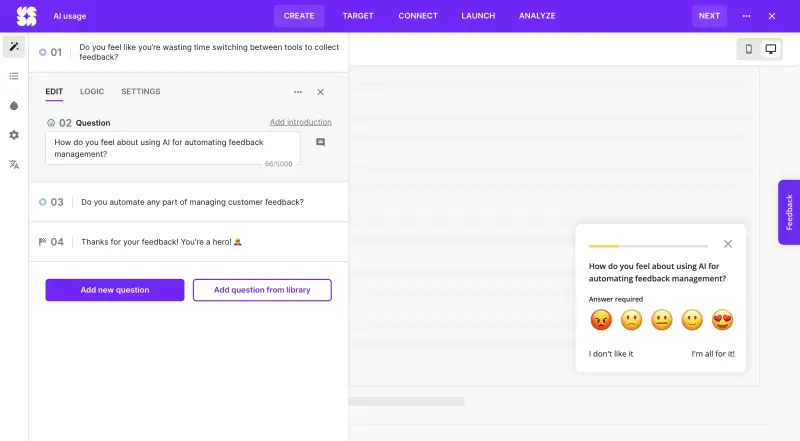
- Survicate keeps survey creation simple without limiting you to basic forms. It feels more modern than SurveyMonkey and more capable than Google Forms, both for the team building the survey and for the people completing it.
- Signing up takes just a few clicks and only requires an email address, while creating and launching that first survey is just as simple.
- You can go for a myriad of professional and modern templates, use an AI survey builder, start from scratch, use a question library, or import your questions.
- The interface keeps these options easy to work with, so added depth does not come at the cost of a slower, clunkier setup.
💡Think Google Forms’ speed and simplicity, with the survey depth you’d expect from SurveyMonkey, plus feedback analysis that goes beyond surveys alone.
Extensive free plan
If budget is the main reason you’re considering Google Forms, Survicate gives you a more capable starting point. For the first 10 days, you get access to pro-level features. After that, your account moves to the more limited forever-free plan, which still gives you access to core feedback features.
With the free plan, you can:
- Collect 25 responses per month
- Collect up to 300 responses per individual survey
- Keep up to 1,000 responses across all active, non-archived surveys
- Create surveys with AI or use pre-made templates
- Share surveys via email, link, or directly on your website
- Use survey logic to personalize the experience
- Access CX metrics, survey analytics, and over-time trend reports
- Integrate with CRM software
- Stay secure with GDPR compliance, ISO 27001, 2FA, and Google SSO
💡That way, you can move beyond basic forms, like the ones that Google Forms offers, without jumping straight into costly plans.
And if you need something more advanced, like some of the features described below, check out full Survicate's pricing here.
AI and automation beyond survey creation
Survicate does include an AI survey builder, so you can create faster. But the more important AI layer starts after responses come in.
Research Hub and Research Assistant help you analyze customer feedback across surveys and connected sources, instead of treating each feedback channel separately.
SurveyMonkey’s Insights feature can help you make sense of survey results. Survicate’s Research Hub goes wider: it lets you analyze feedback from 15+ sources, including surveys, reviews, support conversations, and other customer touchpoints, then helps you spot sentiment, recurring topics, and patterns you can turn into dedicated research projects.
What’s more, you can also connect other sources of feedback into Survicate’s Research Hub, and analyze all the data from it.
💡Think location-specific Google reviews, Intercom conversations, Zendesk or HubSpot tickets, app reviews, call transcripts, and even the dust-covered Google Sheets feedback files no one had the time to analyze.
To top it all off, you get Research Assistant: a ChatGPT-like feature that works with the feedback collected through surveys and connected to Research Hub. Instead of jumping between survey results, reviews, conversations, and tickets, you can ask questions about the combined data and quickly get to the patterns behind customer feedback.
Ask questions like:
- What messaging resonates most with our customers based on recent feedback?
- How should we improve our features based on Google reviews?
- Are there any country-specific patterns in user responses?
So instead of getting a nice sounding AI summary you have to take on trust, you can check where the answer came from and decide what to do with it next.
Suited for many use cases
Similarly to SurveyMonkey, Survicate’s surveys can be shared with clients in many ways, from simply sharing a link to fully embedding your survey in a product, mobile app, or your website.
What’s more, the surveys can take a bunch of forms, including non-interrupting feedback buttons, for continuous feedback collection.
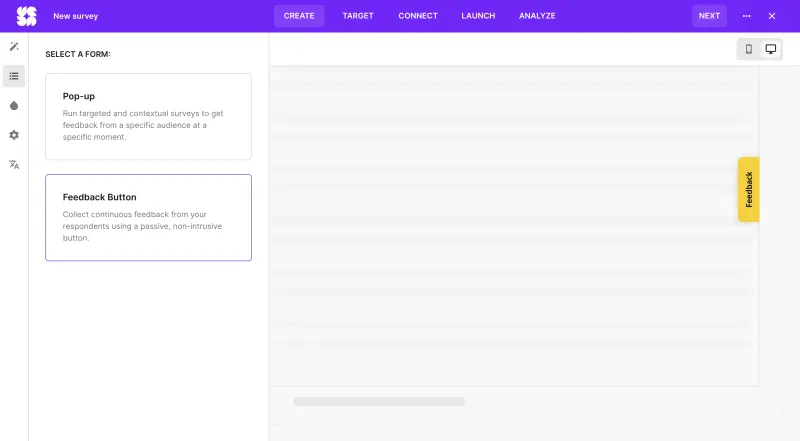
That is where Survicate moves beyond simple collection: with lots of native integrations for different tools, feedback can flow into the systems your sales, support, and marketing teams already use. Then, all you need to do is act on it.
SurveyMonkey vs Google Forms: final verdict
After going through both tools, I don’t think there’s one universal winner between SurveyMonkey and Google Forms.
Google Forms is the better choice when you want a free, familiar, and surprisingly capable way to create forms and simple surveys. You get unlimited questions, unlimited responses, a clean builder, useful question types, basic logic, simple design options, and easy analysis in Google Forms or Google Sheets. It is still a basic tool, but “basic” doesn’t mean useless.
SurveyMonkey is more survey-specific, especially once you move into paid plans. It gives you a larger template library, more distribution options, more integrations, AI survey creation, and stronger analysis features. The problem is that much of this value is unavailable on the free plan. The tool comes with limits, paywalls, pricing friction, and a builder that can feel harder to work with than it should.
And if neither option feels like the right fit, there is a third route: Survicate. It keeps survey creation simple, but gives you more room to collect feedback across channels, analyze survey and non-survey feedback together, and send insights to the tools your team already uses. Research Hub also lets you bring feedback from multiple sources into one place, instead of treating every survey, review, ticket, or conversation as a separate data point.
So, if you need a free tool for forms and lightweight surveys, Google Forms can take you surprisingly far. If you’re looking at SurveyMonkey because you want something more structured than Google Forms, it’s worth checking whether you’re up for a heavier survey platform, or you need a feedback workflow that actually helps you collect, understand, and act on customer feedback. That is where Survicate becomes the stronger next step.
Sign up for Survicate for free and see if it’s the survey tool you’re looking for.
Author's note (last verified: 25 June 2026): Statements such as 'best' reflect our opinion and typical use cases, not a universal guarantee. This comparison is based on publicly available information and our best understanding at the time of writing. Vendors may change features, pricing, and packaging without notice. For the latest details, please check the official sources or reach out to the vendor directly.